
You can delete your Timeline account directly from the iOS or Android app. This permanently removes your user and your meeting notes, and signs you out on all devices.
Before you start
Deletion is permanent. Once your account is deleted, your meeting notes can't be recovered.
Step 1 — Open your Profile
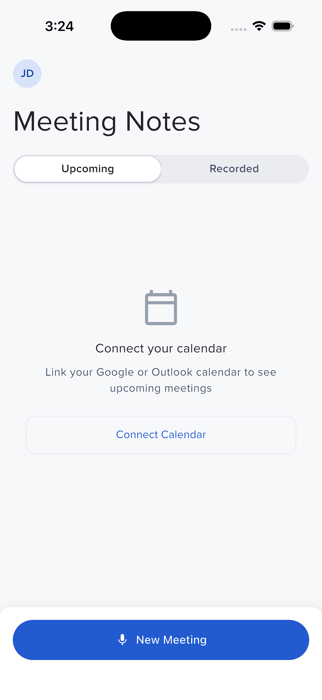
Sign in to the Timeline app and tap the top left Profile button.
Step 2 — Scroll to the delete section
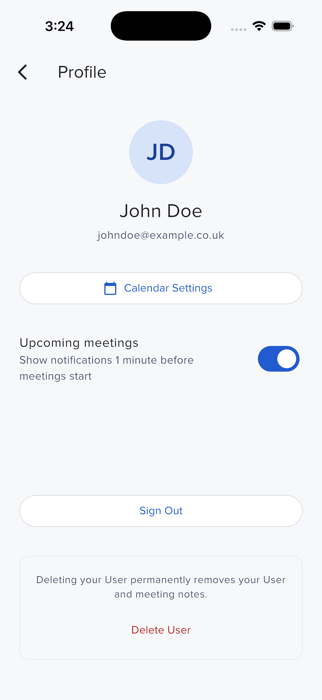
Scroll to the bottom of the Profile screen. You'll see a card explaining what will happen, with a Delete User button.
Step 3 — Tap Delete User
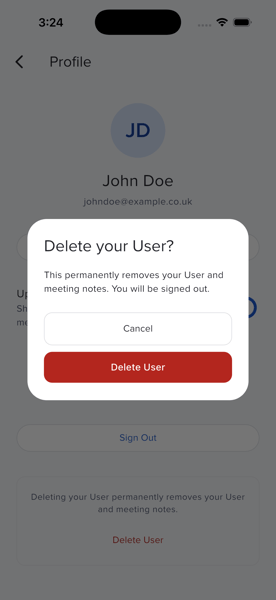
A confirmation dialog will appear:
- Delete your User? -This permanently removes your User and meeting notes. You will be signed out.
Tap Delete User to confirm, or Cancel to go back.
Step 4 — You're done
After a moment you'll see a brief User deleted message, you'll be signed out automatically, and returned to the sign-in screen. Your account is now deleted.
If you see a "We can't delete your User from the app" screen: Some accounts can't be deleted from the app directly — for example if your firm is on the Timeline Investment Platform, uses Timeline MPS, or you're the firm owner with active teammates.
If this happens, tap Contact Support on the screen, and we'll handle the deletion for you. You can also email us directly at support@timeline.co.