
Summary
-
Link once, for the whole firm: Someone at your firm fills in one form, which covers every platform your firm sends an authorisation to.
-
Every night: After the first import, your clients' accounts update every night.
-
Your clients come in automatically: Every individual client the platform holds under your firm's FCA Firm Reference Number (FRN), with at least one open account, is imported. You only check the clients who might match one you have.
-
How long it takes: Depending on the platform, a few hours to a few days. Timeline tells you when your data is ready.
Description
1. Before you link a platform
-
Who should link it: The first person at your firm to link a platform gets the emails about every platform import, and new clients from these imports start off assigned to them. Choose someone who manages client data for the whole firm, on your firm's own FRN.
-
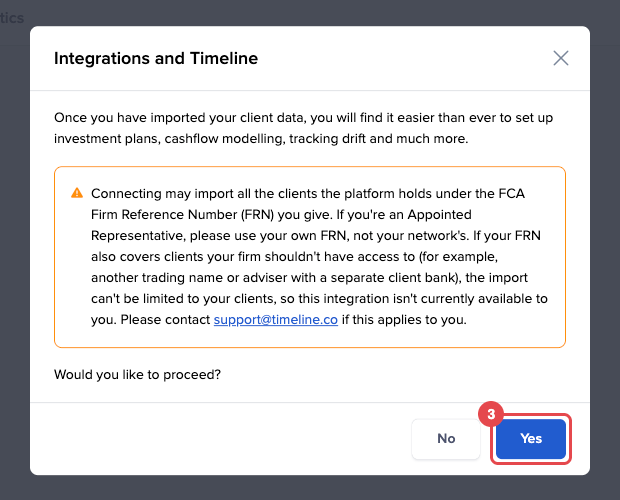
Your firm's FRN: Before you continue, Timeline shows this notice: "Connecting may import all the clients the platform holds under the FCA Firm Reference Number (FRN) you give. If you're an Appointed Representative, please use your own FRN, not your network's. If your FRN also covers clients your firm shouldn't have access to (for example, another trading name or adviser with a separate client bank), the import can't be limited to your clients, so this integration isn't currently available to you. Please contact support@timeline.co if this applies to you."
-
Accounts you've added by hand: Timeline matches an account from the platform to one you already have by the platform and the account number. An account you added by hand without them is kept alongside the platform's, so the client has it twice. Link the platform before adding its accounts by hand.
-
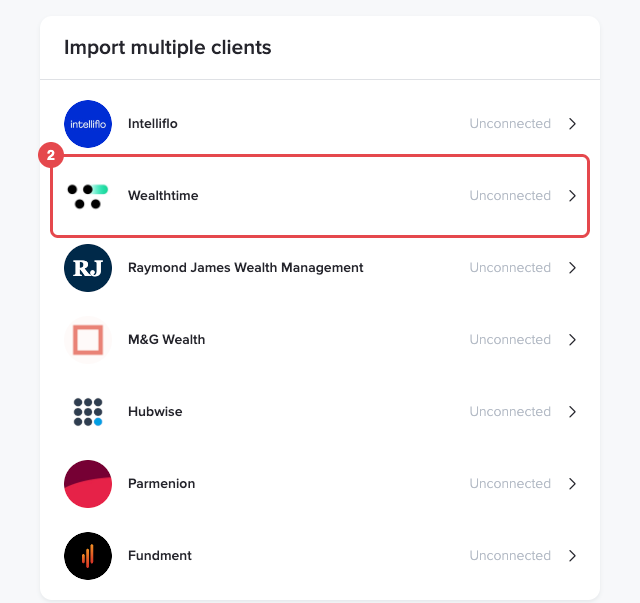
Which platforms: The platforms you can link show in the "Import multiple clients" list. For what each one brings, see What client data each connection brings into Timeline.
2. Link a platform
-
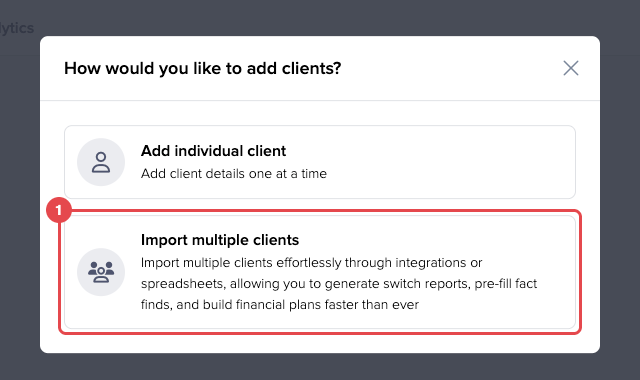
On the Client list, click "Add new", then "Import multiple clients".

-
Click the platform you want to link. A platform you haven't linked yet shows "Unconnected".
-
Read the notice in "Integrations and Timeline" and click "Yes". The form from Finio, our data partner, opens in a new tab.
-
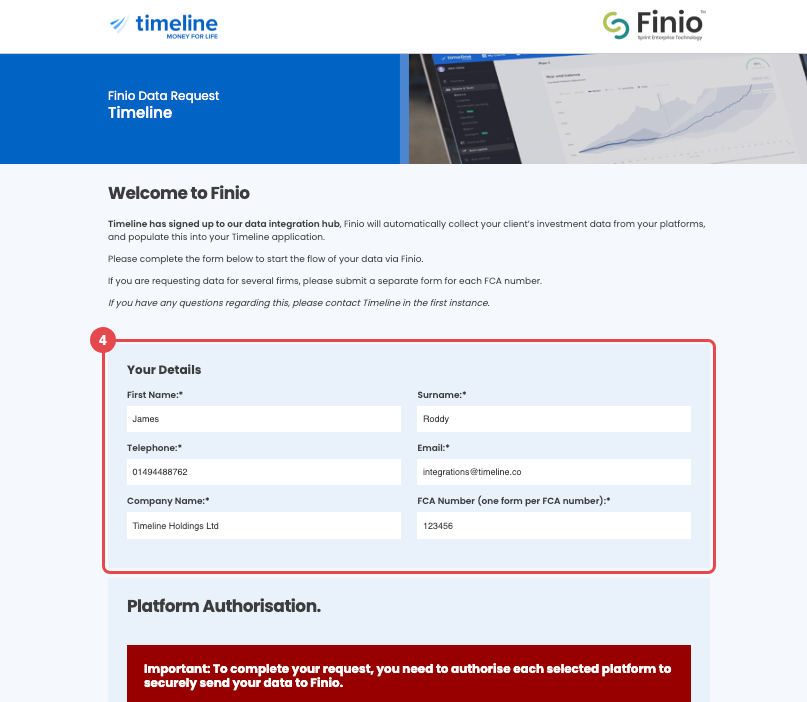
Under "Your Details", fill in your name, phone number, email address, company name and your firm's FRN. Each form covers one FRN.
-
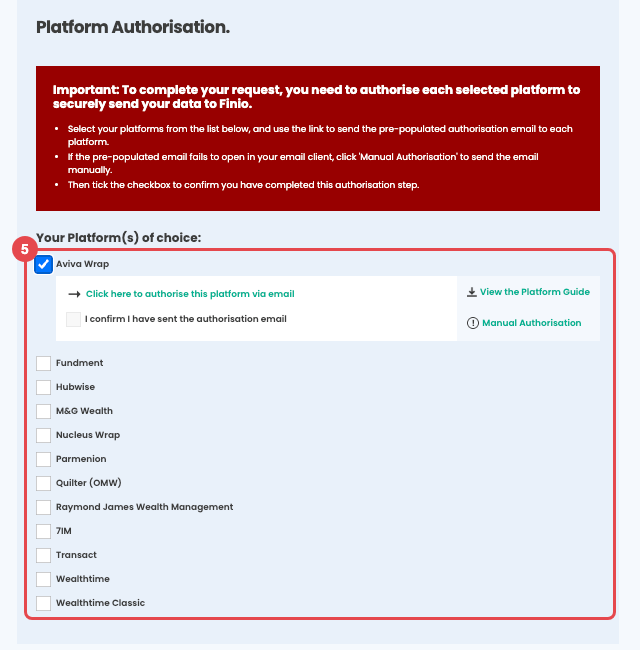
Under "Platform Authorisation", tick every platform your firm uses, not just the one you clicked. The form lists some platforms Timeline doesn't import from yet: see the FAQs.
-
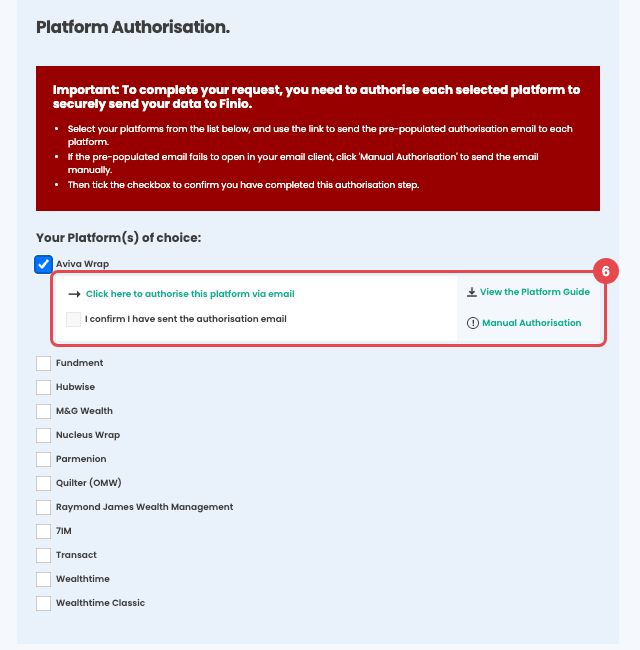
Under each platform you ticked, click "Click here to authorise this platform via email" and send the pre-written email to the platform. If the email doesn't open, click "Manual Authorisation" and send it yourself. "View the Platform Guide" opens the platform's own guide. Then tick "I confirm I have sent the authorisation email".
-
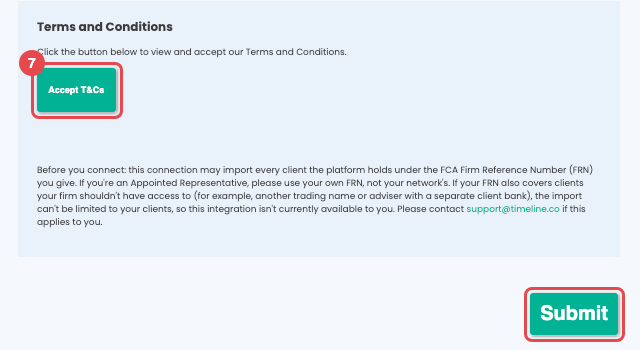
Click "Accept T&Cs" and accept the terms, then click "Submit".
-
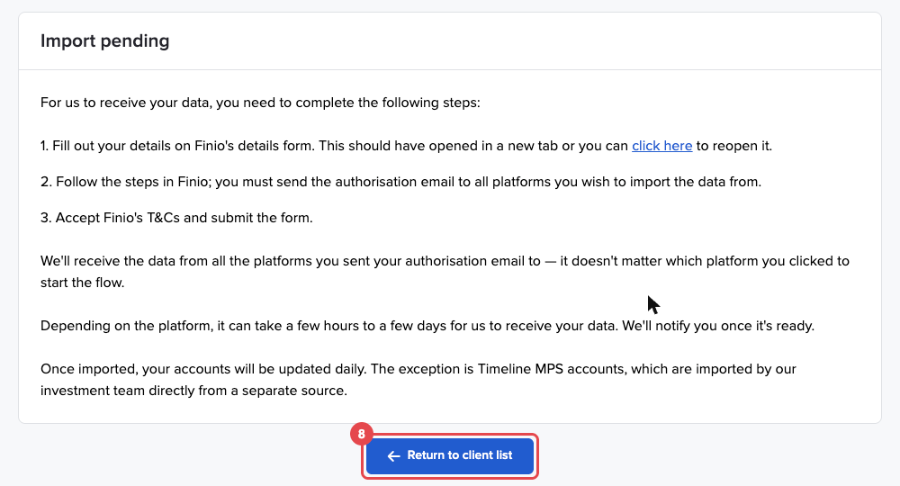
Back in Timeline, the "Import pending" box repeats these steps. Click "Return to client list".
3. After you submit the form
-
Waiting for your data: Depending on the platform, it takes a few hours to a few days for your data to reach Timeline. The platform shows "Unconnected" until then, and "Connected" once it has arrived.
-
Clients Timeline is sure about: They're imported straight away, with their accounts. A client who doesn't match one you have is added as a new client.
-
Clients who might match one you have: They wait for you to check before anything is added (section 4).
What comes in:
-
Individual clients only: Trusts and companies don't come in.
-
Clients with an open account: Clients with no accounts on the platform aren't imported. Accounts the platform shows as closed or inactive aren't imported.
-
Clients and accounts you've deleted: They aren't brought back.
4. Check possible matches
Every adviser in your firm gets a notice in Timeline, and whoever linked the platform also gets an email, "ACTION NEEDED: Confirm clients to import from" the platform.
-
Open the notice, or click "Match Clients" in the email.
-
For each client, check the client Timeline suggests in "Match or create in Timeline". Choose a different client if it's wrong, or "Create new client".
-
Click "Confirm & Start import", then confirm.
Any adviser in your firm can do this. You can't leave a client out of the import. For how Timeline finds a client you already have, see How Timeline matches clients, and which data wins.
5. Read the import summary
When an import finishes, every adviser in your firm gets a notice, "import complete", with the number of accounts and clients imported. An email, "Import Successful: Details Inside", goes to the adviser who confirmed the matches, or for the nightly imports, to whoever linked the platform.
If a client or account couldn't be imported, the email lists each one with the reason. For what each reason means and what to do, see How Timeline matches clients, and which data wins, section 4. The next nightly update tries again in case it's fixed.
6. After the first import
-
Every night: Accounts update, and new clients and accounts on the platform come in. There's no need to start an update yourself.
-
Portfolios: The first time an account comes in, Timeline builds a portfolio from its holdings. Later updates don't change it automatically, so you can update or switch portfolios yourself and this won't be overridden.
-
Financial plans: A linked account's balance in a financial plan follows the nightly updates.
-
Timeline MPS accounts: Platform links update their balances every night, but drift tracking notifications remain entirely under the control of Timeline's investment team.
-
Timeline Platform accounts: Platform links don't change accounts on the Timeline Platform, since we update them daily already.
Conclusion
Linking your platforms once brings your clients, their accounts and holdings into Timeline, and keeps their balances up to date every night without any more work from you. To bring in a platform Timeline doesn't link to yet, import a spreadsheet: see Import clients and their accounts from any spreadsheet with Pennee.
FAQs
Can I choose which clients come in?
No. Every individual client the platform holds under your firm's FRN, with at least one open account, is imported. You choose only for clients who might match one you already have (section 4).
Can I link another platform later?
Yes. Click the platform in the "Import multiple clients" list and follow the same steps: submit the form again, ticking the new platform and sending its authorisation email.
Why does the form list platforms I can't choose in Timeline?
The form lists every platform Timeline's data partner works with. Timeline imports from the platforms in the "Import multiple clients" list, and is adding the others. Authorise every platform your firm uses: Timeline then has your data ready, and your clients and accounts from those platforms come in as soon as Timeline adds them, and we'll notify you once they're ready.
Why does a platform still show "Unconnected"?
Your data hasn't reached Timeline yet. Depending on the platform, it takes a few hours to a few days. Check that the authorisation email went to that platform. If it still shows "Unconnected" after a few days, contact support@timeline.co.