
Summary
-
What it's for: Portfolio Ranges lets you give each Timeline model portfolio range your firm's own name, and download a record of every allocation the models in a range have held.
-
What you'll do: Rename a range, and download its "Historic holdings" as an Excel file.
-
Before you start: You'll see "Portfolio Ranges" in Settings if your firm uses Timeline's model portfolios.
Description
1. Open Portfolio Ranges
-
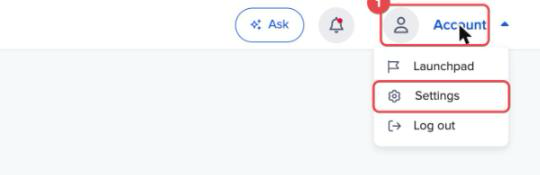
Click "Account" at the top right, then "Settings".
-
In the left-hand menu, click "Portfolio Ranges".
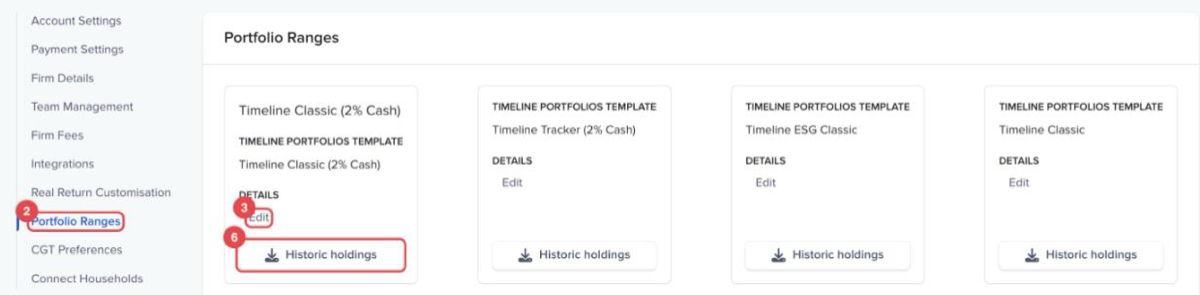
Each range has its own card. The card shows the Timeline template it's based on under "TIMELINE PORTFOLIOS TEMPLATE" and, once you've renamed it, your firm's name for it at the top.
2. Rename a range
-
On the range's card, click "Edit" under "DETAILS".
-
In the "Edit Range Details" window, type the new name under "Name". The name can't be left blank.
-
Click "Save".
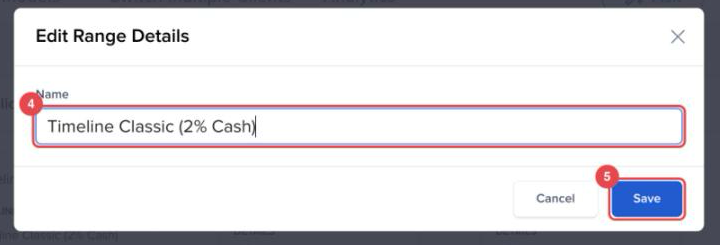
The new name applies across your firm. Timeline shows it in front of each model in the range, so a range you call "Sterling Core" shows its models as "Sterling Core 60", "Sterling Core 80" and so on.
3. Download historic holdings
-
On the range's card, click "Historic holdings".
Timeline downloads an Excel file named after the range. It has one sheet for each model in the range. Each sheet lists every allocation that model has had, by date, with each fund's ISIN and name. It's useful when a client or your compliance team asks what a portfolio held at a point in the past.
Conclusion
Your ranges now carry your firm's name, and you have the full holdings history for each one whenever you need it for reviews, reports or due diligence. To see how the models themselves work, read How Model Portfolio Centre Works in Timeline Planning.