
Summary
-
Eight sections: Cash and savings, investment accounts, non-liquid assets, debts, income sources, spending, contributions and transfers, and protection.
-
Same steps everywhere: Every section is added to, edited and deleted in the same way.
-
Owned by the client, the partner or both: Each item records whose it is.
-
Kept up to date for you: A finished FactFind adds, updates and removes items, connected accounts update from their provider, and the audit trail records each change.
Description
1. Open the Wealth overview
-
Open the client in Timeline and, under "About", click "Client record".
-
In the left menu, under "Wealth overview", click the section you want.
2. Add, edit or delete an item
The steps are the same in every section except "Spending" (see below).
-
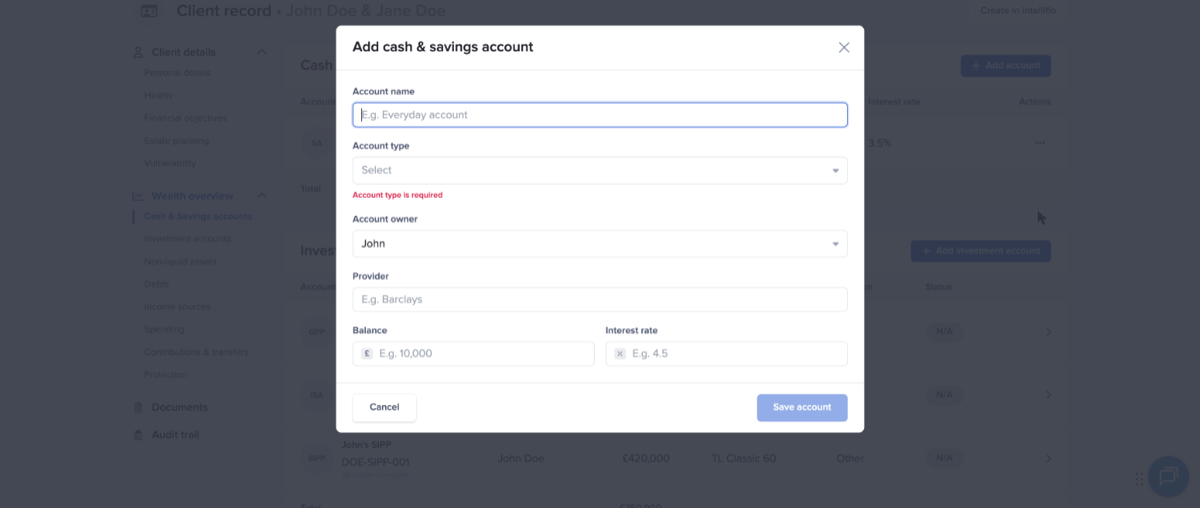
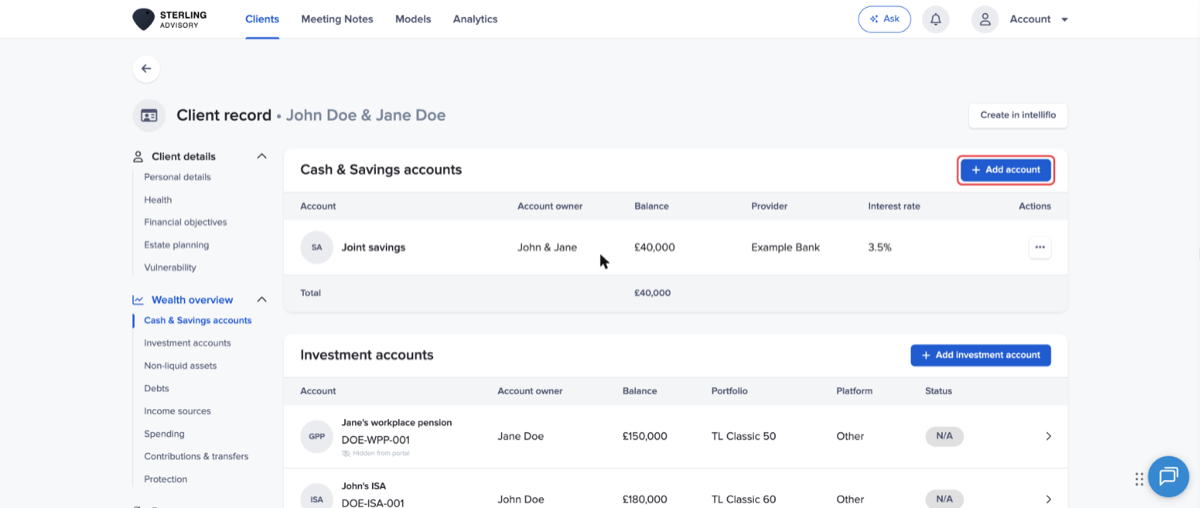
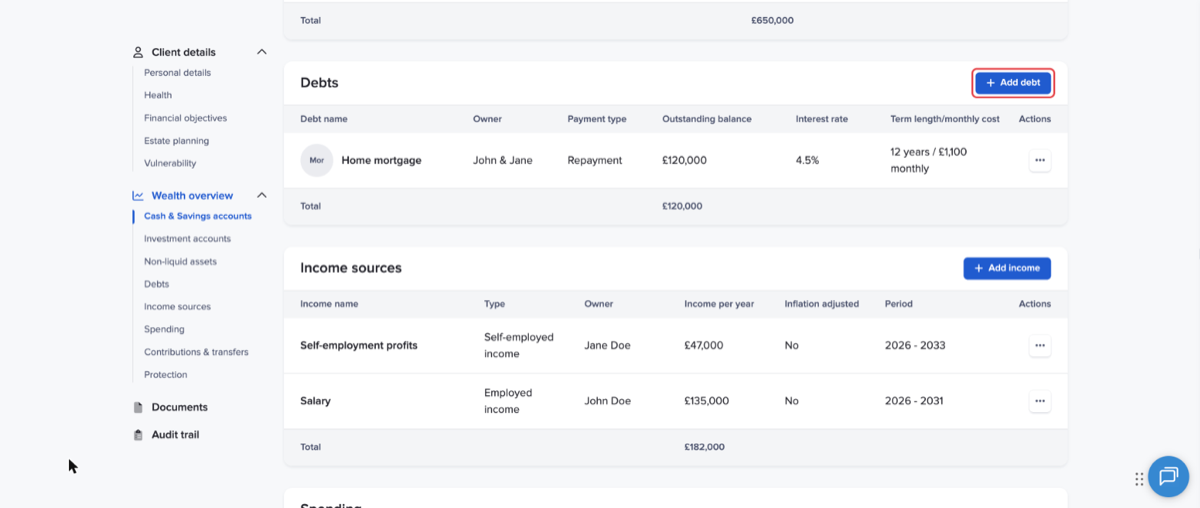
Click the add button at the top right of the section, for example "Add account" or "Add debt". If the section is empty, the button is in the middle.
-
Fill in the form. The save button stays unavailable until every required field is filled in.
-
Click the save button. The item appears in the table.
To edit an item, click its row. To delete it, click the menu at the end of the row, then "Delete", and confirm. Deleting can't be undone.
Owner: where a section asks for an owner, choose the client, the partner, or both of them (for example "John & Jane"). The partner options only appear when the partner is connected in the client's household.
Missing details: a warning triangle next to an item's name means some details are missing, usually because the client left a FactFind question blank. Timeline saves the item anyway, so nothing the client told you is lost. Click the item to see the missing fields highlighted, and fill them in when you have the information.
3. Cash & Savings accounts
Current accounts, savings accounts, Cash ISAs and other cash, with the owner, provider, balance and interest rate. Cash held inside an investment account or pension goes in "Investment accounts".
4. Investment accounts
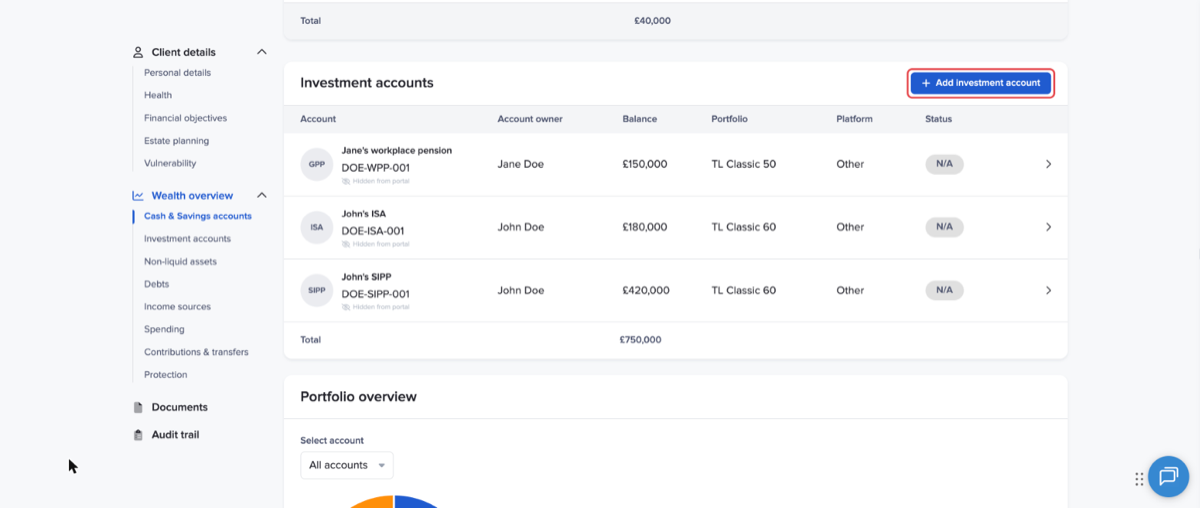
ISAs, GIAs, pensions and other investments, with the platform, wrapper type, portfolio and balance. "Portfolio overview" under the table shows the household's combined allocation. There are three kinds of account:
-
Accounts you track by hand: added here or from the client's FactFind. You can edit or delete everything.
-
Connected accounts: imported from a provider your firm has connected. The balance and holdings update from the provider, so you can only change the name and owners.
-
Timeline Platform accounts: managed on Timeline Platform. You can only change the name.
Click an account to open its "Details", "Actions", "Allocation" and "Drift". Under "Actions", "Hide from client portal" or "Share with client portal" controls whether the client sees the account in the Client Portal. A FactFind doesn't ask for an account ID or portfolio, so add them when you first edit an account that came from a FactFind.
5. Non-liquid assets
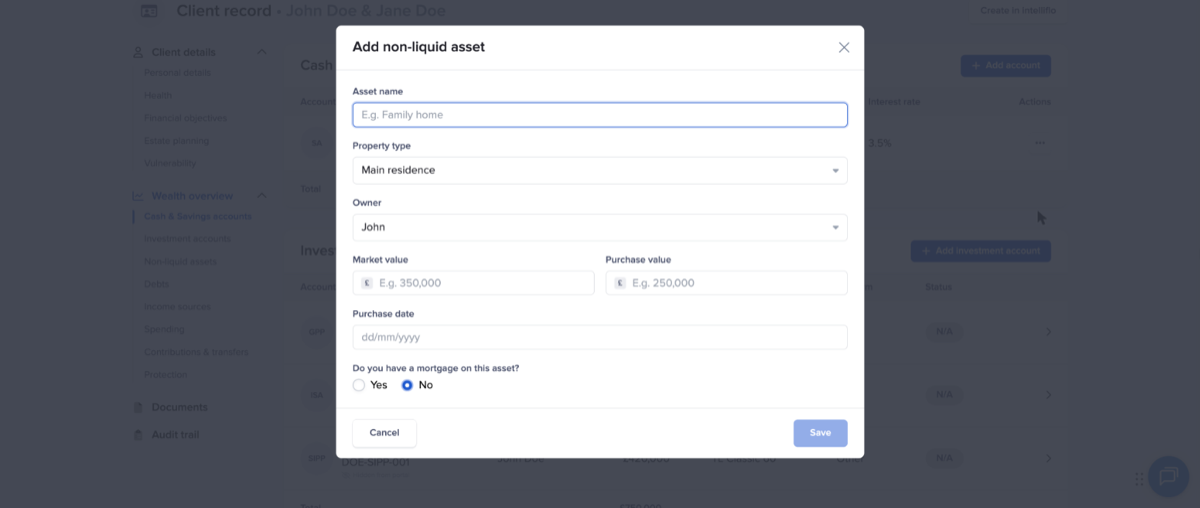
The client's main residence, holiday homes and rental properties, with their market value and the mortgage owed on each. To add a mortgage, answer "Do you have a mortgage on this asset?" with Yes when you add or edit the property. A property can have more than one mortgage. Deleting a property also deletes its mortgages.
6. Debts
Mortgages, loans, lines of credit, credit cards and other debts, with the outstanding balance and interest rate. A mortgage must be linked to a property in "Non-liquid assets", and shows in both sections. A change in either place shows in both.
For a repayment debt, enter the monthly cost and Timeline estimates how long it takes to repay, for example "≈ 12 years to repay". For an interest-only debt, enter the term and Timeline estimates the monthly interest.
7. Income sources
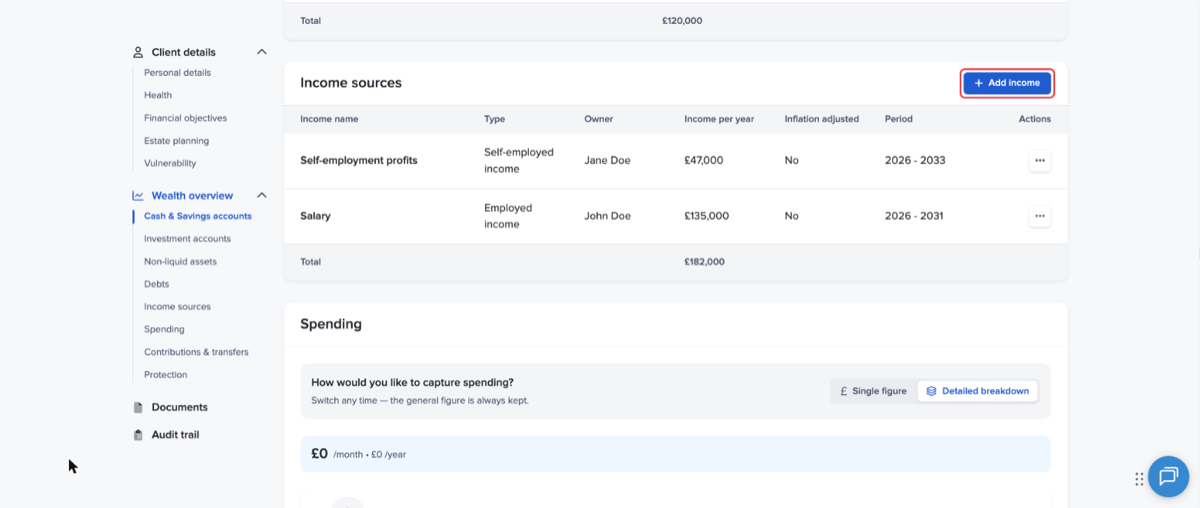
Salary, self-employed income, State and defined benefit pensions, annuities, dividends, rental and other income, with the yearly gross amount, whether it rises with inflation, and when it starts and stops. A start or end can be a year or the client's or partner's retirement, and an income can run "Onwards".
If a financial plan uses an income source, your changes show in that plan too. Deleting it names the plan first and removes it from that plan. The same applies to accounts, properties, debts and spending that a plan uses. See How the financial plan uses the Client record.
8. Spending
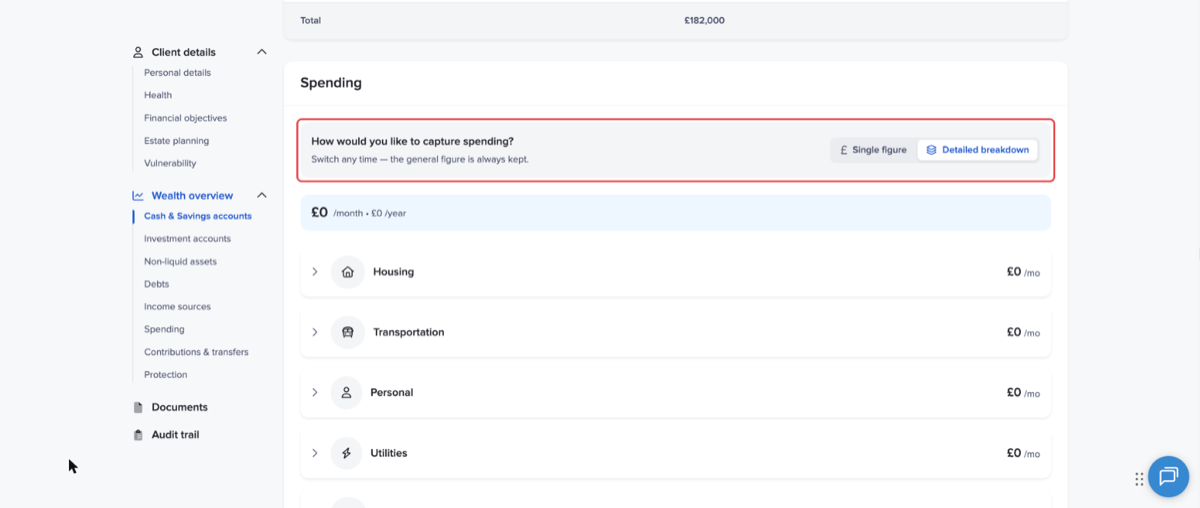
The household's net monthly spending, as a single figure, a breakdown across six categories, or both. Choose which one you see at the top of the section, under "How would you like to capture spending?". Both are kept, so switching loses nothing.
-
Click "Single figure" and enter "Total net monthly expenditure", or click "Detailed breakdown", open a category and click "Edit".
-
Enter the amounts. In the breakdown, click "Add another expense" for anything not listed.
-
Click "Save changes".
Each category shows where its figures came from and when, for example "Source: FactFind • 3 Nov 2026". If the single figure and the breakdown total differ, a banner shows both, and "How to reconcile" puts them side by side.
When you send a FactFind, choose under "How should spending be captured?" whether the client gives a complete breakdown or a single figure.
9. Contributions & transfers
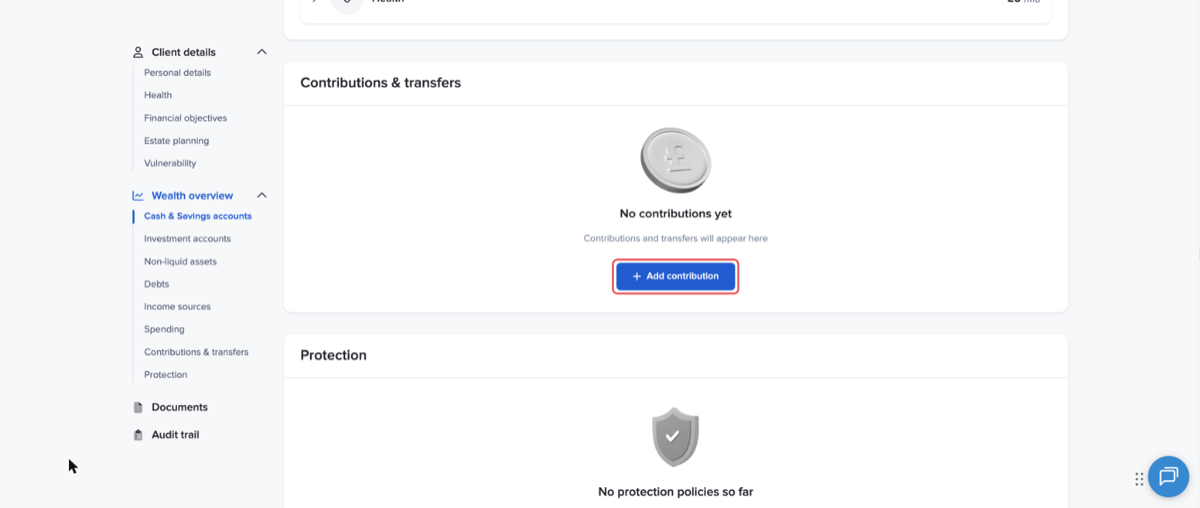
Regular or one-off payments into a cash or investment account. Add the account first. "Target" is the account the money goes into, and "Source" is where it comes from: one of the household's income sources or accounts, or "Other", for example an employer's pension contribution. Deleting an account also deletes the contributions into it. Contributions into Timeline Platform accounts are set up on Timeline Platform.
10. Protection
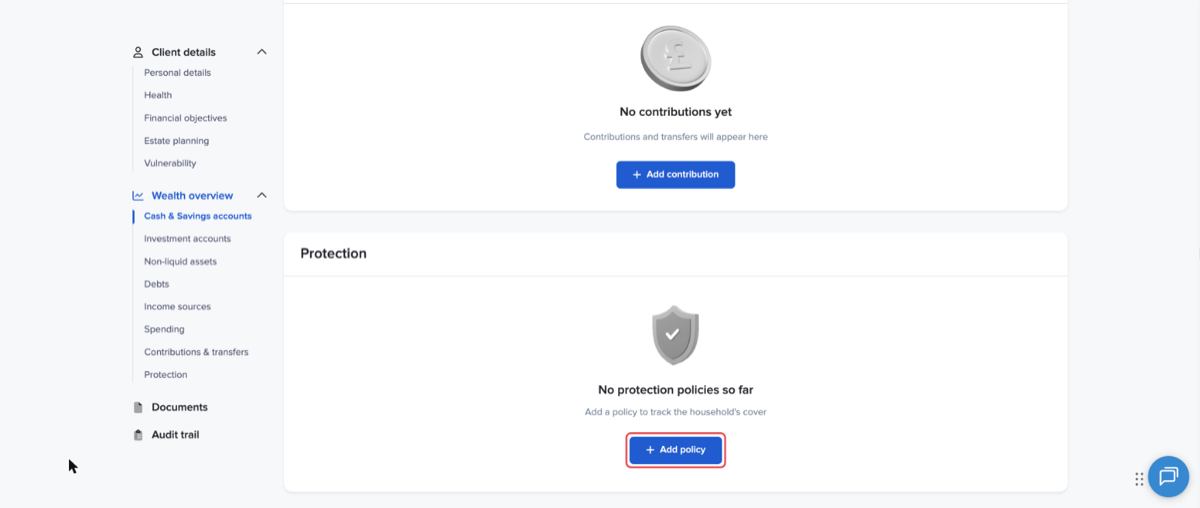
Life cover, critical illness, income protection, family income benefit and other policies, with the cover, monthly premium and expiry. "Owner(s)" can also be "Other", for example a trust or a business, and "Life assured" records whose life is covered. For a joint policy, choose both names in "Life assured" and the lives basis that matches how it pays out.
11. How the Wealth overview stays up to date
-
FactFind: when the client finishes a FactFind, the items they gave are added or updated, and anything they removed is removed. Questions they left blank stay blank. Connected and Timeline Platform accounts aren't changed by a FactFind. See How the FactFind and the Client record keep each other up to date.
-
What the FactFind prefills: a new FactFind with Smart Prefill starts with everything in these sections, so the client only changes what's different.
-
Connected accounts and Timeline Platform: balances and holdings update from their source.
-
Pennee: ask Pennee to add, change or remove an item. Investment accounts can only be deleted in the Client record. See How Pennee works with the Client record.
-
Audit trail: each change shows who made it, when, and the old and new values. Read See who changed what, and when, with the client audit trail.
Conclusion
The Wealth overview puts everything a client owns, owes, earns and spends in one place, kept current by the FactFind and their connected accounts, and ready for the financial plan.
Related: Keep every client fact in one place with the Client record · How the financial plan uses the Client record · How the FactFind and the Client record keep each other up to date · How Pennee works with the Client record