
Summary
-
Ready for compliance: Every change to a client's facts is logged with who made it, when, and the old and new values. A file review, a complaint or a client question is answered from one screen.
-
Fully transparent: You see where each figure came from, whether that's the client's FactFind, your team, Pennee or a provider, not only what it says today.
-
You stay in control: Nothing changes silently. Automatic updates are listed alongside manual ones, so you can spot anything unexpected and correct it in the Client record.
-
Every change in one list: The audit trail shows every change to the household's Client record, newest first.
-
Who or what made the change: An adviser by name, or a source such as a FactFind, Pennee or a connected provider.
-
Before and after: Expand an update to see the old value, the new value and the item it belongs to.
-
Covers the household: Changes for the client and their partner appear in the same list.
Description
1. Open the audit trail
-
Open the client in Timeline and, under "About", click "Client record".
-
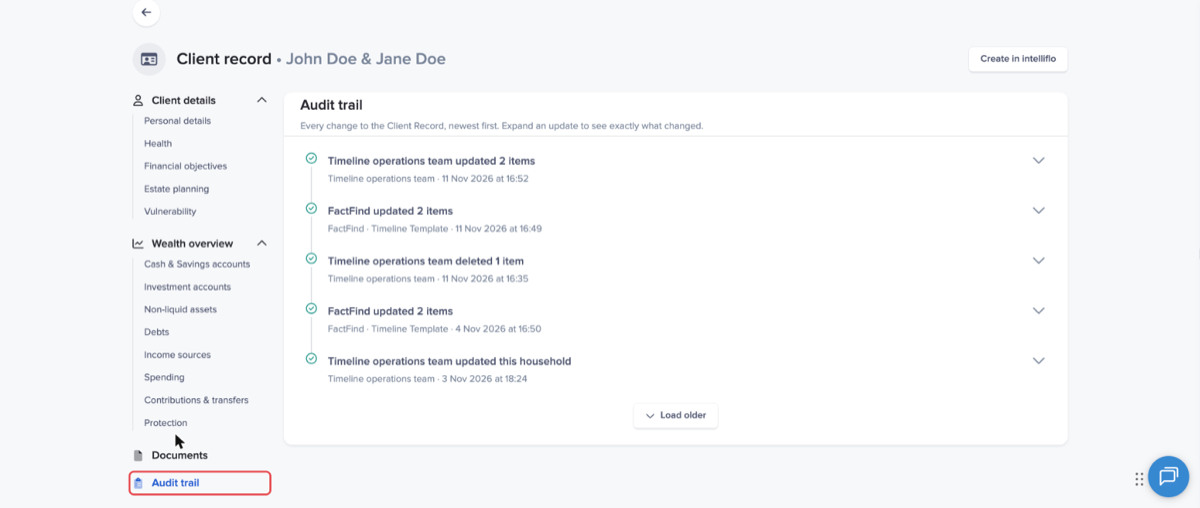
In the left menu, click "Audit trail". The list of updates opens, newest first.
2. Read an update
Each update shows who made it, what they did and how many items changed, for example "FactFind updated 2 items", with the date and time underneath.
-
Click an update to expand it. A table shows each item, the action ("New", "Updated" or "Removed") and the change: the old value crossed out, then the new value.
-
Click "View" next to an item to open it in the Client record.
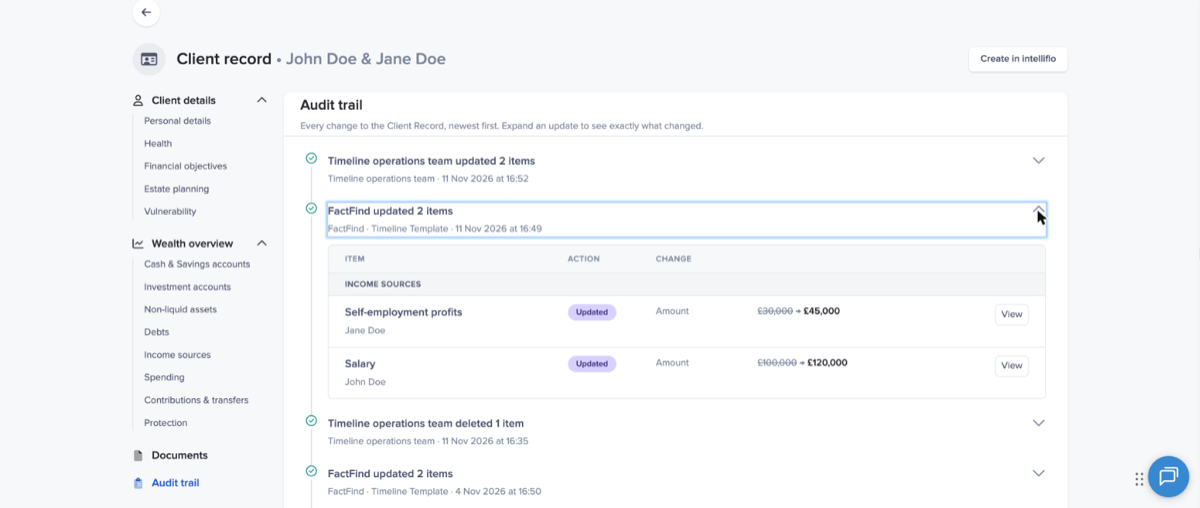
Items are grouped by area: Investments, Cash & savings, Client details, Client circumstances, Contributions & transfers, Property & debts, Spending, Income sources and Protection. Click "Load older" at the bottom to see earlier updates.
3. Who appears as the author
-
An adviser or colleague: their name, with "Manual edit" and their role.
-
"FactFind": answers from a finished FactFind, with the FactFind's name.
-
"Pennee": changes Pennee made when you asked it to.
-
A provider's name: updates from a connected account. If the provider isn't known, it shows "Third-party integration".
-
"Timeline operations team": a change Timeline's support team made for you, for example during an import.
4. Why it matters
When a client asks where a figure came from, or a file review asks when you last updated a client's circumstances, the audit trail answers both. You see whether the figure came from the client, your team or a provider, without searching emails or notes.
Conclusion
The audit trail turns the Client record into something you can stand behind: each change has an author, a date and a before-and-after.
Related: Keep every client fact in one place with the Client record · How Pennee works with the Client record