
Summary
-
What you'll do: Send a client the risk questionnaire, open their results, and override the risk score if your conversation with the client calls for it.
-
How long it takes: A couple of minutes to send. The client completes the questionnaire online in their own time.
-
Before you start: The client needs an email address on their record. If they're part of a household, you can send it to either person or to both.
Description
1. Open the client's risk profiles
-
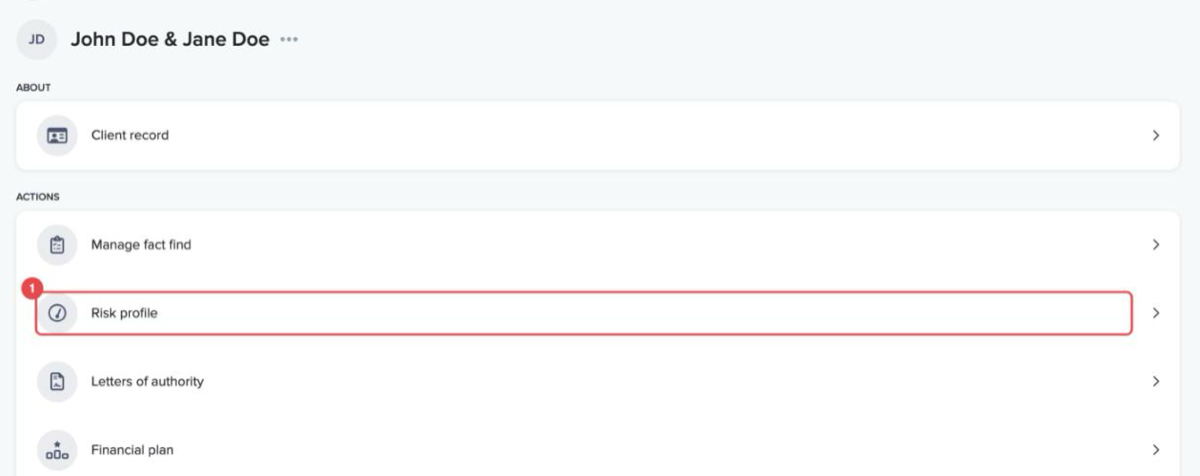
Open the client in Timeline. Under "Actions", click "Risk profile".
-
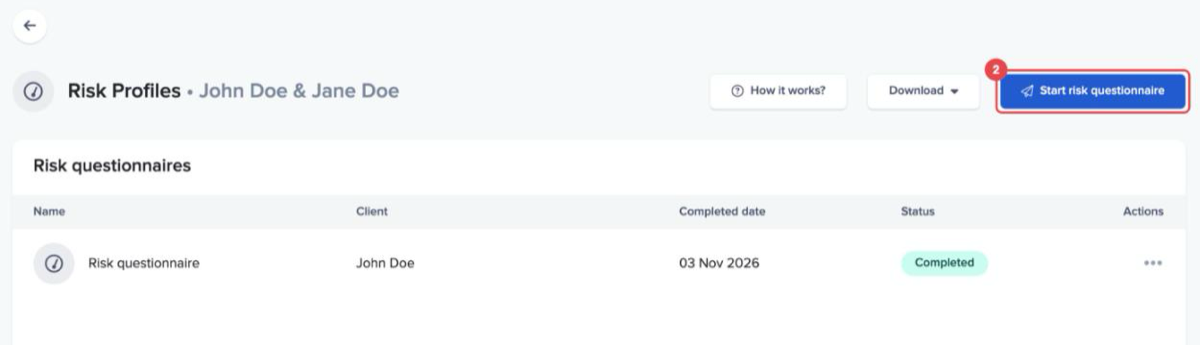
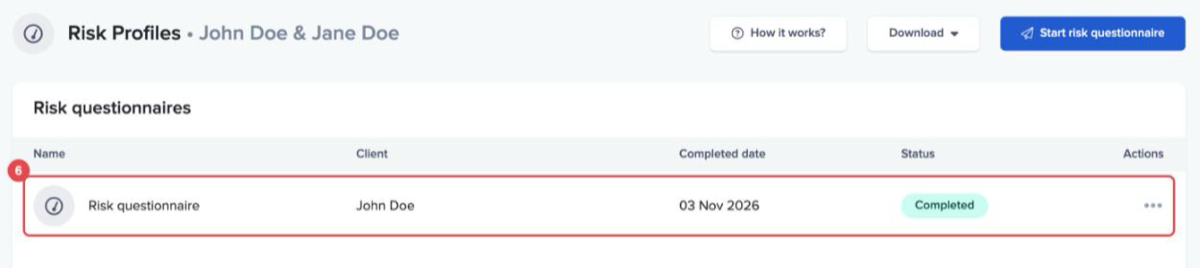
The "Risk Profiles" page lists every questionnaire the household has been sent, with its status. Click "Start risk questionnaire" at the top right.
2. Choose how to send it
-
A window opens headed "Choose how to start the risk questionnaire". Click "Send risk questionnaire to client" to email it.
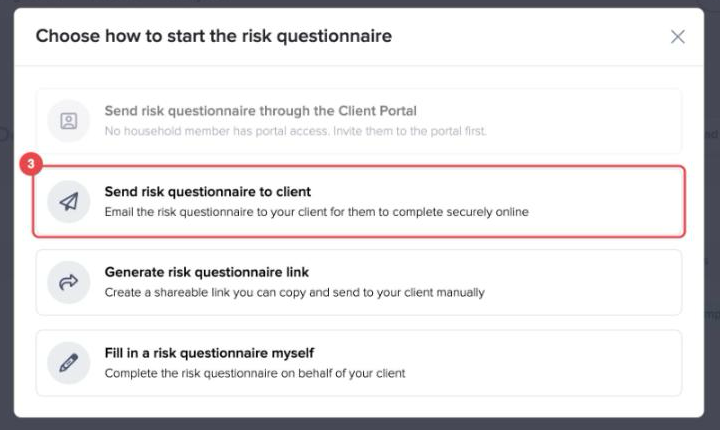
The same window has three other options:
-
Send risk questionnaire through the Client Portal: sends the link as a secure message in the Client Portal. It's greyed out until someone in the household has portal access.
-
Generate risk questionnaire link: creates a link you can copy and send to your client yourself.
-
Fill in a risk questionnaire myself: opens the questionnaire so you can complete it on the client's behalf, for example during a meeting.
-
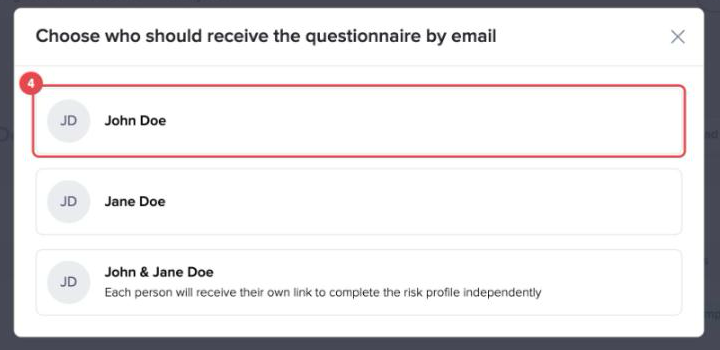
For a household, choose who should receive it: one person, the other, or both. If you pick both, each person gets their own link and completes their own risk profile.
-
The "Send risk questionnaire" page shows the client's name and the email address it will go to. The email comes from no-reply@timeline.co. If the address is wrong, click "Change email" to correct it before sending. When you're ready, click "Send risk questionnaire".
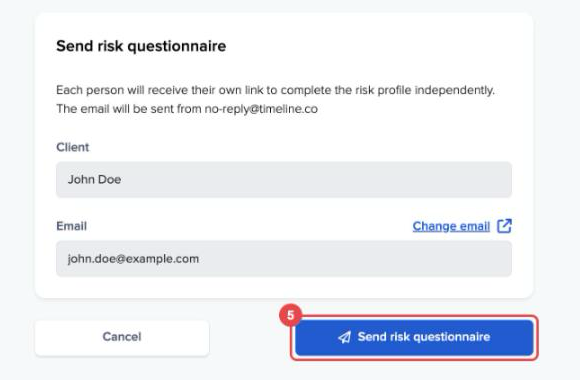
The questionnaire then appears on the "Risk Profiles" page, and its status changes to "Completed" once the client has finished it.
3. Open the results
-
On the "Risk Profiles" page, click the completed questionnaire.
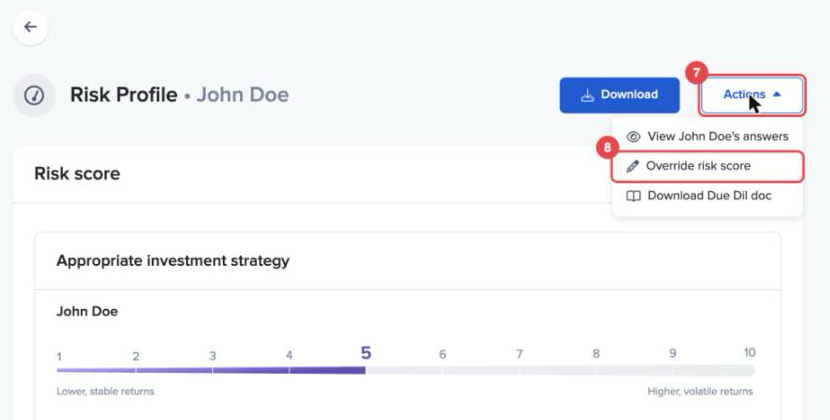
The "Risk Profile" page shows the client's risk score from 1 to 10 under "Appropriate investment strategy", with a plain-English description of what that score means for them. If some of the client's answers don't fit their overall attitude to volatility, Timeline flags it here so you can talk them through with the client. Click "Show how this score is calculated" to see how the score was reached.
4. Override the risk score
-
At the top right of the "Risk Profile" page, click "Actions".
-
Click "Override risk score".
-
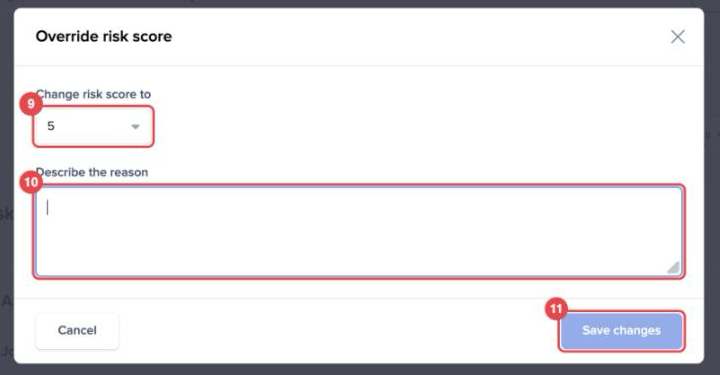
In the "Override risk score" window, choose the new score from 1 to 10 under "Change risk score to".
-
Under "Describe the reason", explain why you're changing the score. A reason is required.
-
Click "Save changes".
The "Risk Profile" page now notes that the client's risk score was changed by the adviser, showing the original score, the new score, the date and your reason. To change it again, click "Edit" in that note.
Conclusion
You've sent the questionnaire, read the results and, where your advice called for it, recorded an override with a reason alongside the client's original score. To understand how Timeline arrives at the score in the first place, read Understanding Risk Scoring in Timeline Planning.