
Summary
-
What it does: Merge combines a duplicate client record into the one you want to keep, so each client has a single record.
-
What's kept: The record you keep wins wherever both have a value; the duplicate fills in anything that's missing.
-
It's permanent: The duplicate is deleted after the merge, and a merge can't be undone.
-
When you can't merge: Timeline tells you why, for example when the two records belong to different households.
-
Imported clients: The client you keep takes over the duplicate's accounts and its links to your platforms and back office, so later imports update it.
Description
1. Open Merge
-
Open the client you want to keep from "Clients".
-
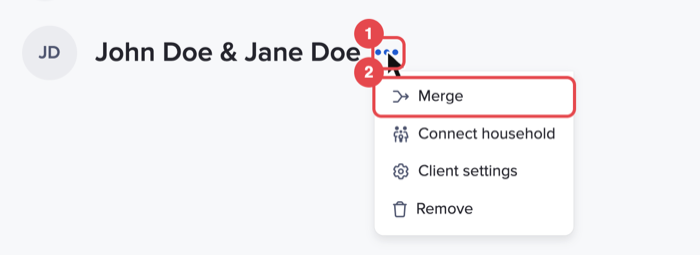
Click "…" next to the client's name, then "Merge".
2. Choose the duplicate
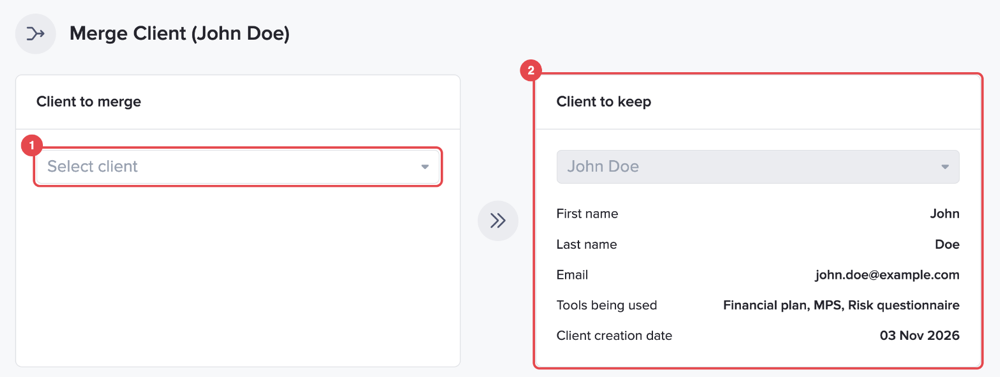
The "Merge Client" page shows the client you're keeping on the right, under "Client to keep", with their name, email, the Timeline tools they use and when they were created. For a couple, there's a section for each partner.
-
Under "Client to merge", open "Select client" and choose the duplicate. Compare the two records side by side.
3. Confirm the merge
-
Click "Save changes" at the bottom of the page.

-
The "Confirm client merge" window explains that merging is permanent. Check you've picked the right records, then click "Confirm & Merge", or "Cancel" to go back.
If you meant to link two people as a couple rather than combine two records of the same person, click "Click here to connect households" on the Merge page instead.
4. When Timeline can't merge two clients
Timeline stops the merge and tells you why if:
-
Different external references: The clients have different identification for the same external provider (for example, two different Transact references).
-
Different access: Both clients have their own login, and Timeline can't keep both.
-
Conflicting households: One client is the main client in one household and a partner in another. Merge main clients with main clients, or make one client single first.
Merge isn't available for clients on Timeline Platform who have completed identity checks.
5. Find duplicates
-
On a client's page: When Timeline thinks a client may be a duplicate, it shows "We've detected a potential duplicate client." Click "Click here to merge records if needed." to open Merge.
-
When you add a client: If the client looks like one you already have, Timeline shows "Potential duplicate found". Click "View existing client" to open them, or "Create new client" if they're a different person.
-
How duplicates happen: Usually an import that added someone you already had as a new client. See How Timeline matches clients, and which data wins, section 5.
6. After you merge imported clients
-
Accounts: The duplicate's investment accounts move to the client you keep.
-
Links to your platforms and back office: The client you keep takes over the duplicate's client references, so the next import updates the client you keep, not a new one.
-
An import that stopped on the duplicate: If an import couldn't update a client because it matched more than one client in Timeline, merge them first. For investment platforms, the next daily update tries again. For Intelliflo and spreadsheets, import the client again.
Conclusion
One record per client keeps plans, FactFinds and reports pointing at the same, up-to-date information. Take a moment to compare the two records before you confirm, because a merge can't be reversed. Next, read Remove a client or household.