
Summary
-
What it's for: Real Return Customisation lets you deduct your adviser fee, the platform fee and the DFM fee from the real returns Timeline shows in Analytics, so the figures reflect what a client would see after costs.
-
What you'll do: Enter your usual fees once in Settings. Timeline then recalculates the portfolio figures for you.
-
Before you start: These are your own settings. Each adviser in your firm sets their fees separately.
Description
1. Open Real Return Customisation
-
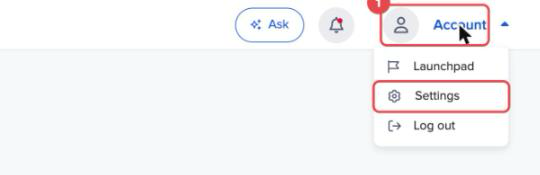
Click "Account" at the top right, then "Settings".
-
In the left-hand menu, click "Real Return Customisation".
2. Enter your fees
-
Under "Adviser Fee (annual)", enter your ongoing adviser fee as a percentage. If you charge a fixed amount instead, switch on "Flat Fee" and enter it in pounds.
-
Under "Platform Fee (annual)", enter the platform's annual charge the same way, as a percentage or, with "Flat Fee" switched on, as an amount in pounds.
-
Under "DFM Fee (annual)", choose 0.09%, 0.12% or 0.15%. This fee applies to Timeline's model portfolios. For other managers' model portfolios, Timeline uses that model's own cost.
-
Click "Save changes".
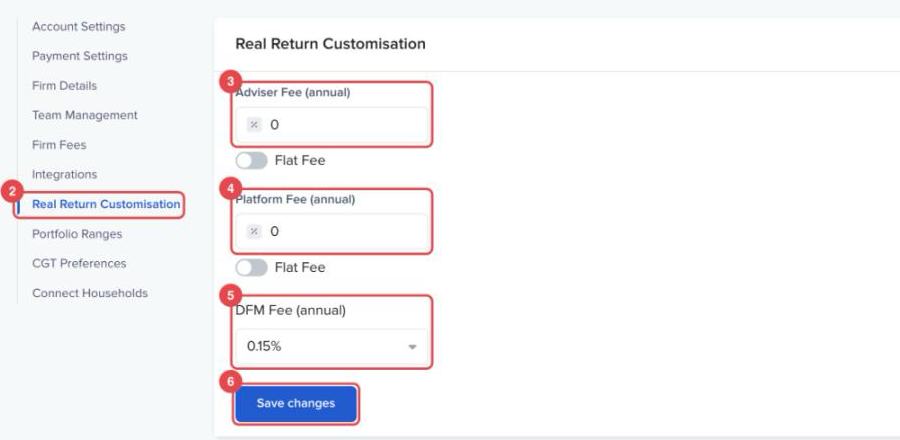
Timeline then updates the portfolio figures with your fees. A progress message shows how many have been updated so far. Stay on the page until it finishes.
Example
An adviser charges 0.75% a year and most clients use a platform charging 0.25%. They enter 0.75 under "Adviser Fee (annual)" and 0.25 under "Platform Fee (annual)", and save. From then on, the real returns they see in Analytics are shown after both fees, which is the figure they'd want to discuss with a client.
Conclusion
Set your fees once and every comparison you run in Analytics shows returns after costs, so the numbers you share with clients are like for like. Next, read the Timeline Analytics User Guide.