
Summary
-
What a template is: The list of sections you want in a report, in the order you want them. Build it once and use it for every client.
-
Four to start from: Timeline includes a Switch Report, a Financial Plan, a Risk Profile and a FactFind template.
-
Your own wording: Add custom sections with your own text and images. Custom tags fill in each client's details for you.
-
Where to find it: Open any client, click "Create report", then "Manage templates".
Description
1. Open the Template Centre
-
Open any client and click "Create report". On the "Select template" page, click "Manage templates" at the top right.
-
The Template Centre lists every template available to you. Click "New template" to start one from scratch.
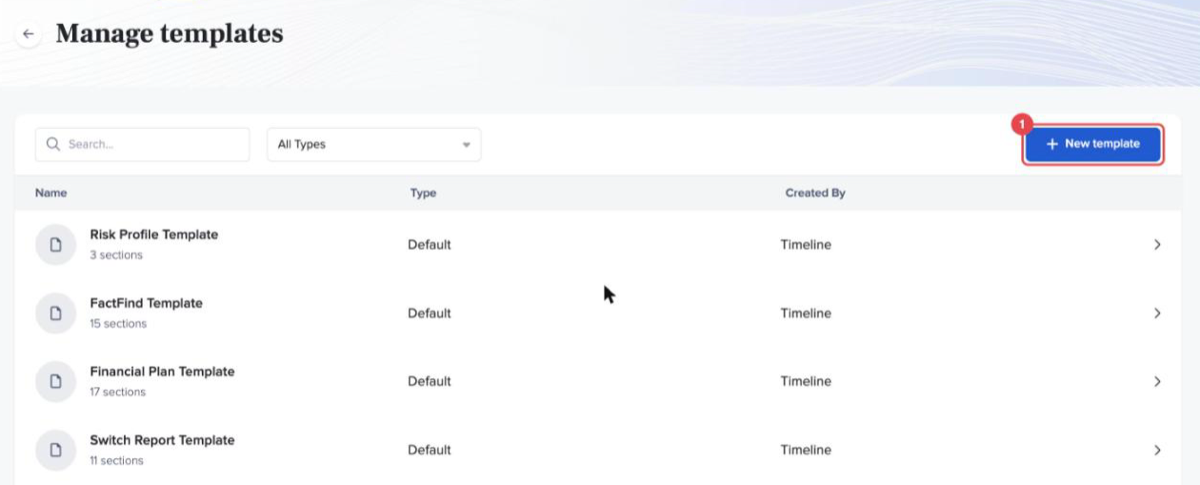
To start from an existing template instead, use "Duplicate" on it and edit the copy. This is the quickest way to adapt one of Timeline's default templates. You can edit and delete the templates you create.
2. Name it and choose the sections
-
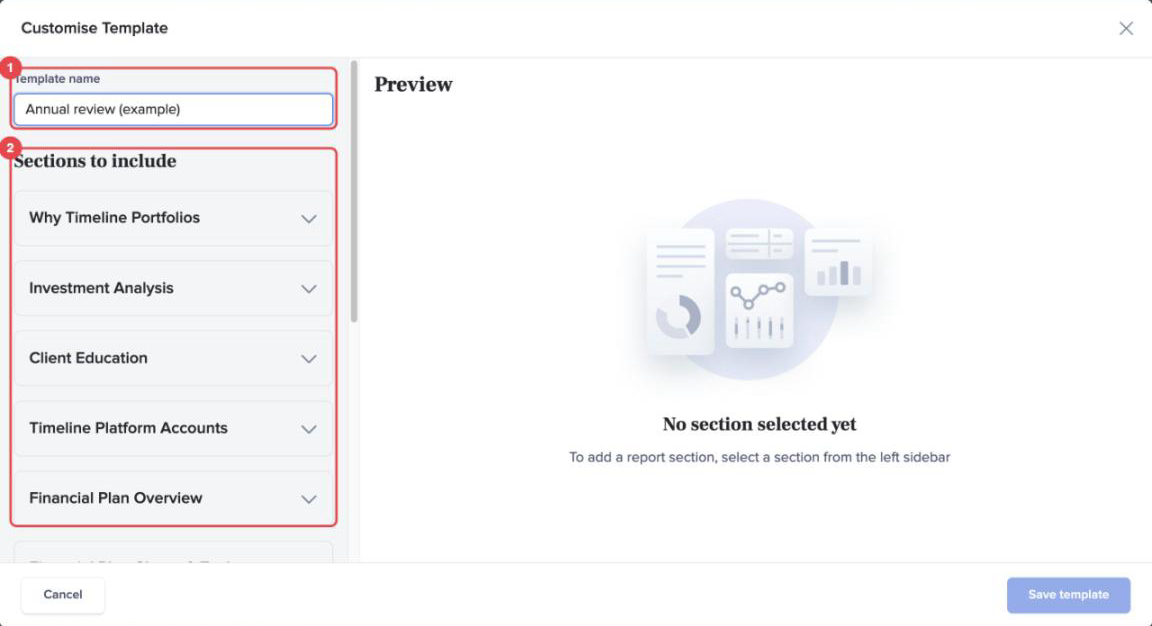
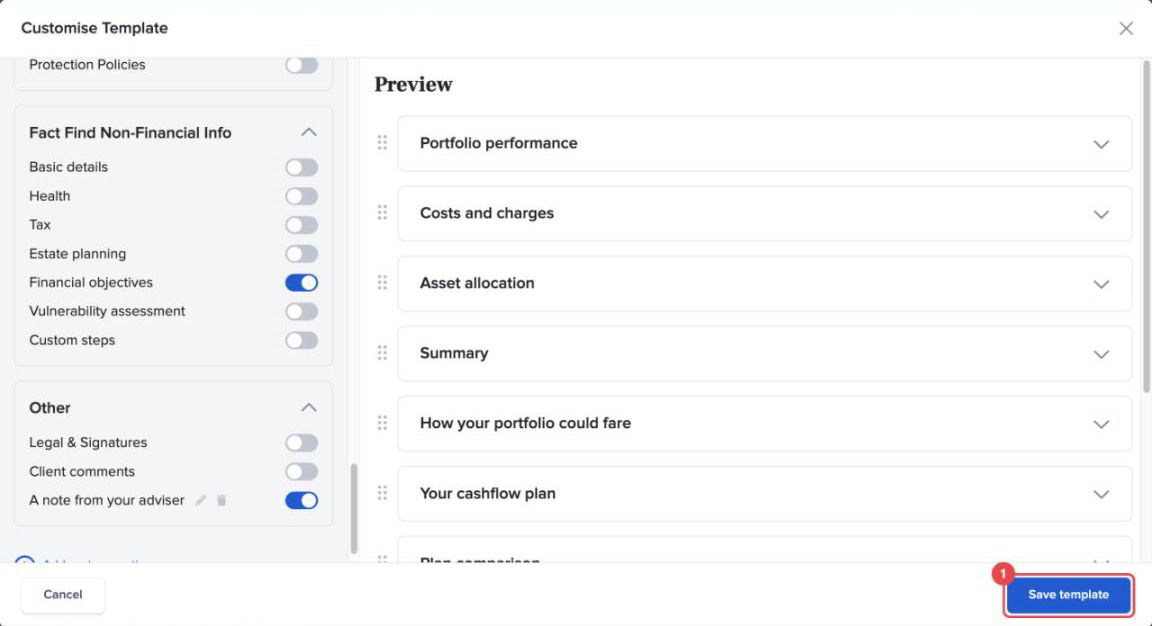
In "Customise Template", give the template a clear name in "Template name", such as "Annual review" or "New client report".
-
Under "Sections to include", tick each section you want. Sections are grouped by where their data comes from: investment analysis, financial plan, IHT Planner, risk profile, FactFind and so on.
Not sure what a section shows? The Modular Reporting section library describes every one.
3. Add your own wording
-
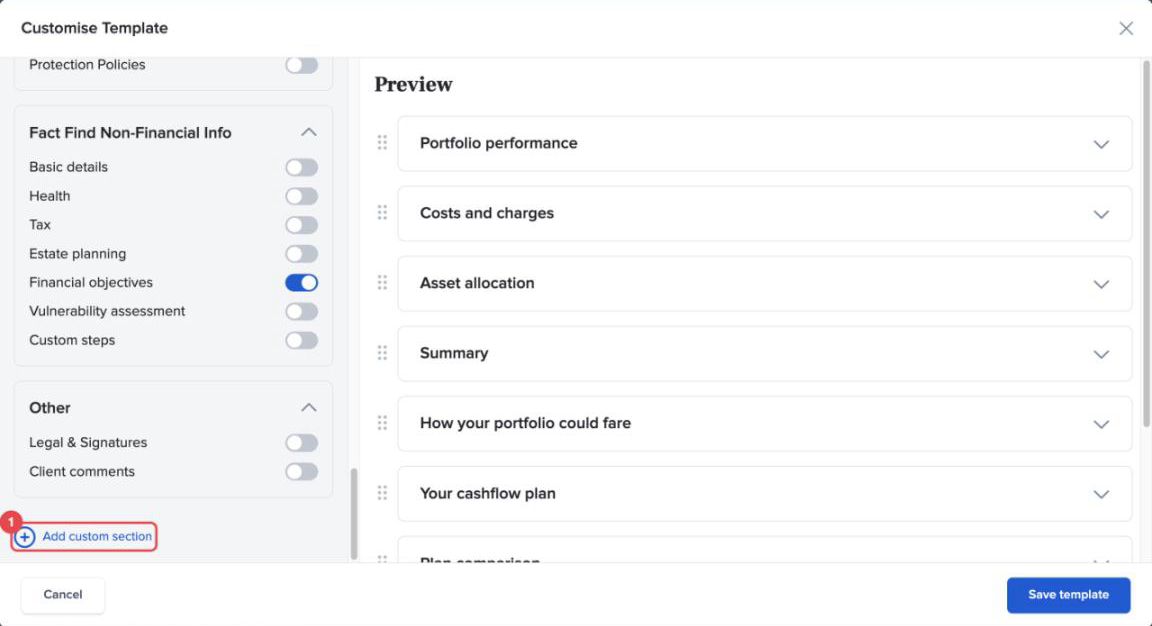
Click "Add custom section" to write something of your own, for example a note about your service, your approach to fees or a reminder of what you'll cover in the meeting.
-
Write your text in the editor. To include a client's details, click the custom tag icon ("Insert Custom Tag") and choose a tag. When you create a report, Timeline replaces each tag with that client's information.
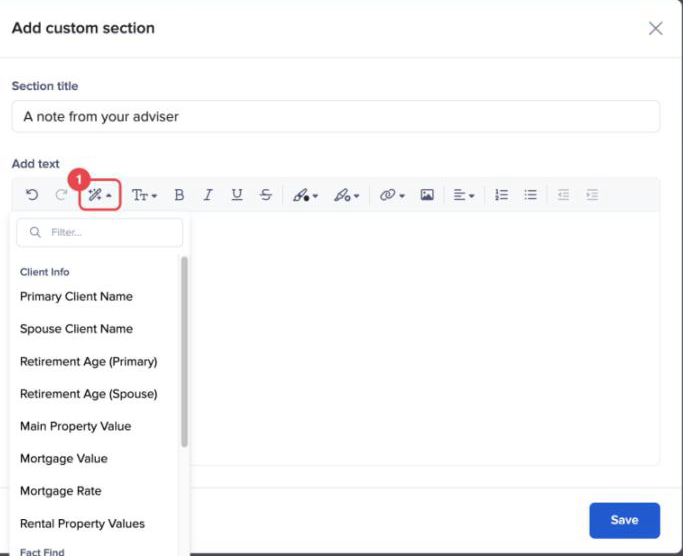
The tags available are:
-
People: Primary Client Name, Spouse Client Name.
-
Retirement: Retirement Age for the primary client and the spouse.
-
Property: Main Property Value, Mortgage Value, Mortgage Rate, Rental Property Values.
-
Investments: Accounts Total Balance, Timeline MPS Balance.
-
Risk and FactFind: Risk Score for the primary client and the spouse, Fact Find Completion Date.
A custom section belongs to the template you add it to. To use the same wording in another template, add it there too.
4. Save it
-
Click "Save template". It now appears on the "Select template" page for every client.
Example
A two-adviser firm uses three templates. "New client" covers the FactFind, the risk profile and the recommended portfolio. "Annual review" covers performance, costs, the sustainable spending chart and a custom section called "A note from your adviser", which starts "Dear Primary Client Name". "Switch report" starts from Timeline's default and adds the firm's own paragraph on fees. Both advisers produce reports with the same structure, and new joiners use the same templates from their first week.
Conclusion
A good set of templates is what makes Modular Reporting quick. Spend half an hour on the two or three reports you write most often, and every report after that starts from your firm's own structure and wording.