
Frequently asked questions
My client didn't get the invitation email. What can I do?
-
Check the client's email address in Timeline: click "…" next to their name, then "Client settings", then "Client details".
-
Then open the client, click "Invite to portal" and click "Send invitation" again.
-
You can also click "Generate link" next to the person under "Copy and share your links", and send the link to them yourself. See Invite any client to the Client Portal.
How long does an invitation link work?
-
An invitation link works for 14 days. On the "Invite to Portal" page, each person's link shows "This link expires on" and the date.
-
While a link is still valid, sending the invitation again or clicking "Generate link" gives the person the same link.
My client's invitation link has expired or doesn't work. Can I send a new one?
-
Yes. Open the client, click "Invite to portal", then send the invitation again or generate a new link. Once the old link has expired, the client gets a new one.
-
A client who opens an expired or invalid link sees "Something went wrong" and is asked to open their most recent invite email or ask you for a new one.
My client says someone else is logged in. What should they do?
-
If someone else is already logged in to the Client Portal on the same browser, for example a partner on a shared computer, your client sees "Someone else is logged in on this browser".
-
They click "Log Out and Continue" to log the other person out and carry on with their own invitation.
My client's date of birth doesn't match. What happens?
-
When your client accepts the invitation, they confirm their date of birth. It must match the date of birth on their record in Timeline.
-
They have 3 tries. After each wrong date, they're told how many tries are left. After the third, they can't try again for 3 hours and are asked to contact you.
-
Check the date of birth under "Client settings", then "Client details", and correct it if needed. Your client can then try again once the 3 hours have passed.
Why can't I invite a member of the household?
-
Each person needs an email address and a date of birth on their record, and must be 18 or over. If something is missing, the invite page shows "Missing email address" or "Missing date of birth" next to their name, with an "Edit client details" button. A person under 18 shows "Under 18" and can't be invited.
Which pages does my client see?
Client | Pages in the menu |
Not on Timeline Platform | "Dashboard", "Messages", "Documents" |
On Timeline Platform | "Dashboard", "Transactions", "Messages", "Documents" |
A trust, viewed by its trustee | "Dashboard", "Transactions" |
-
Clients on Timeline Platform also see their Platform accounts, balance evolution, asset allocation and holdings on the dashboard. See What your client sees in the Client Portal.
What does my client see on the dashboard if they don't have a financial plan?
-
A welcome page, with links to their messages and documents. Once the client has a main financial plan in Timeline, the dashboard shows "Plan progress" instead.
How do I choose what each member of the household sees?
-
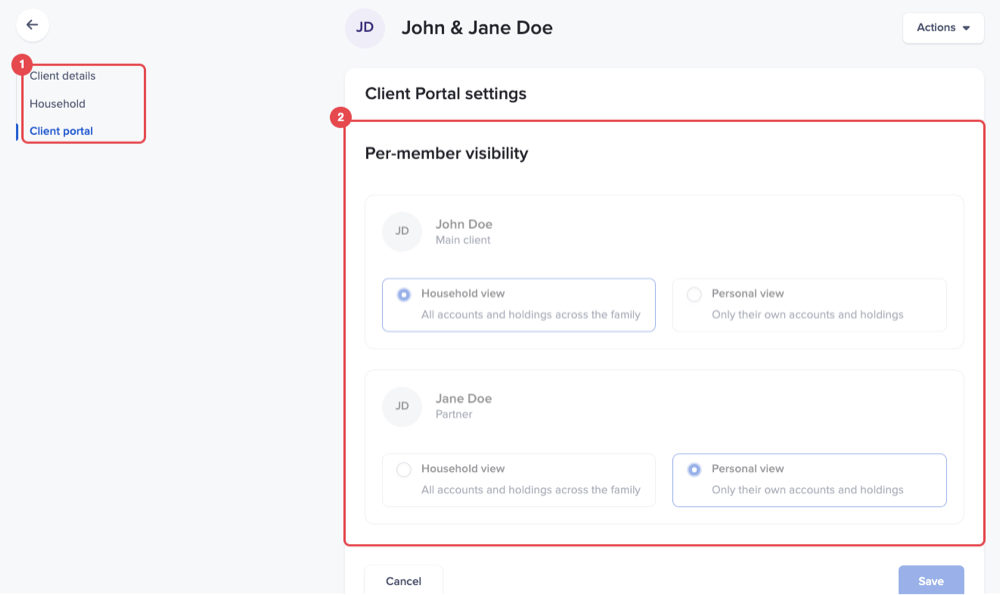
Open the client in Timeline, click "…" next to their name, then "Client settings".
-
Click "Client portal". Under "Per-member visibility", the main client and the partner each have a card.
-
Choose "Household view" (all accounts and holdings across the family) or "Personal view" (only their own accounts and holdings), then click "Save".
-
The view also decides which documents each person sees in the Client Portal.
Why can't I change a client between household view and personal view?
-
You can change a person's view once they're on Timeline Platform, under "Client settings", then "Client portal".
-
For clients who aren't on Timeline Platform, the cards are greyed out and the standard setting applies: the main client has the household view and the partner has the personal view. See Client settings: details, household, assigned adviser and portal visibility.
Can my client see their partner's documents?
-
With the household view, yes: they see the documents you've added to the Client Portal for every member of the household. With the personal view, they see only their own. By default, the main client sees the partner's documents, and the partner doesn't see the main client's. See Share documents in the Client Portal.
How do I know my client has signed up?
-
On the "Invite to Portal" page, a person who has registered shows "Successfully onboarded", and Timeline notifies you when they complete their registration. When the client and their partner have both signed up, the client's page shows "Already in Client Portal".