
Summary
-
One secure place: Once your client has signed up, the Client Portal shows them how their financial plan is tracking and the documents you share with them.
-
Pages in the menu: Every client sees "Dashboard", "Messages" and "Documents". Clients on Timeline Platform also see "Transactions".
-
Plan progress: If the client has a financial plan in Timeline, the dashboard shows "Plan progress" from their main plan. Without a plan, they see a welcome page.
-
Household or personal view: The main client sees the whole household and the partner sees only their own information, unless you change it for clients on Timeline Platform.
Description
The Client Portal is the client's side of Timeline. This article walks through it as your client sees it, so you can answer "what is this?" when a client asks, and know what each family member can see before you invite them. To invite a client, read Invite any client to the Client Portal.
1. The menu
-
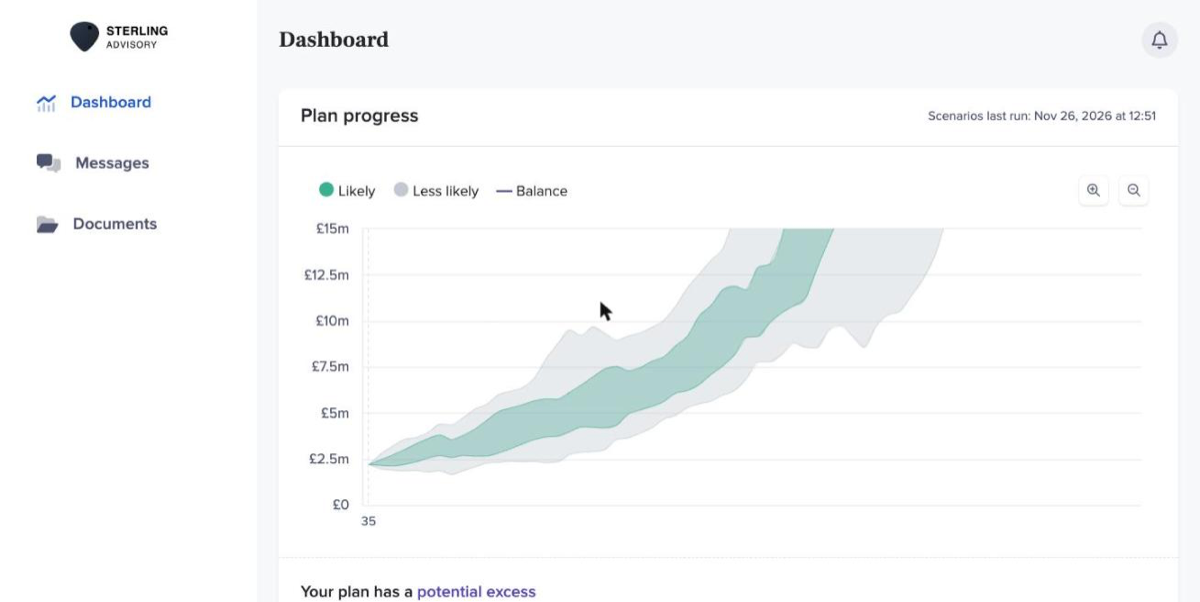
The menu on the left shows your firm's logo and the pages the client can open: "Dashboard", "Messages" and "Documents". Clients on Timeline Platform also see "Transactions", between "Dashboard" and "Messages".
-
"Log out" is at the bottom of the menu.
-
On a phone, the menu folds into a button at the top of the screen.
2. Dashboard: Plan progress
-
If the client has a financial plan in Timeline, the dashboard opens with "Plan progress", taken from the client's main financial plan. The chart shows the range of balances the plan could reach over time, with the "Likely" range in green and the "Less likely" range in grey. The client can zoom in and out of the chart.
-
"Scenarios last run" at the top right shows when the projections were last calculated.
-
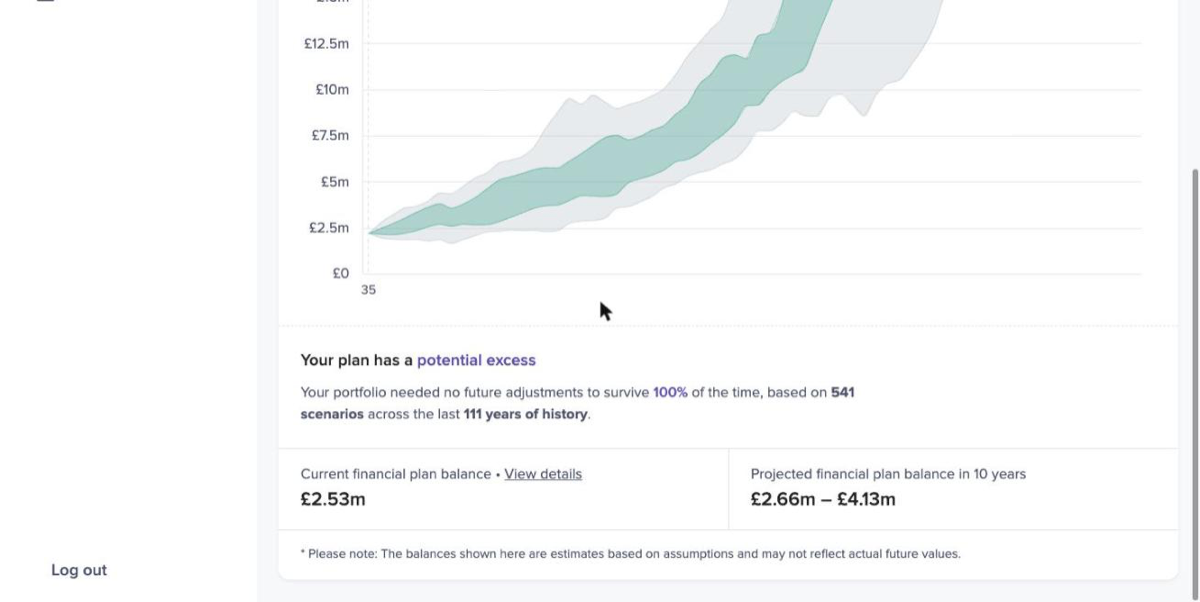
Under the chart, a line sums up the plan's outcome in plain words: "Your plan is sustainable", "Your plan is less sustainable", "Your plan is unsustainable" or "Your plan has a potential excess". Below it, the client reads how often their portfolio needed no future adjustments, for example "100% of the time, based on 541 scenarios across the last 111 years of history".
-
"Current financial plan balance" shows today's total of the accounts in the plan. "View details" opens a list of those accounts with their owner, balance and portfolio.
-
"Projected financial plan balance in 10 years" shows a range, for example from £2.66m to £4.13m.
-
A note at the bottom reminds the client that the balances are estimates based on assumptions and may not reflect actual future values.
3. Dashboard without a financial plan
-
If the client has no financial plan in Timeline, the dashboard shows a welcome page: "Welcome to your Client Portal" with the client's first name, and links to their messages and to the documents you've shared.
-
Once the client has a main financial plan in Timeline, "Plan progress" takes the welcome page's place.
4. Dashboard for clients on Timeline Platform
Clients on Timeline Platform see their Platform investments on the dashboard as well as "Plan progress":
-
"Balance evolution": a chart of their balance over time, for all accounts or one account, with the current balance and the balance 1 month and 3 months ago.
-
"Tracked accounts": their Platform accounts, each with its portfolio, balance and "Profit / Loss".
-
"Asset allocation": how their money is split across asset classes, with the holdings in each account ("Units", "Avg. Price", "Cost", "Value" and "Profit / Loss").
Until money has arrived in their Platform accounts, the client sees a welcome page that explains their investments will appear once deposits and transfers are processed.
5. Transactions (Timeline Platform only)
-
"Transactions" lists the transactions on the client's Platform accounts. The client can show all accounts or pick one, and open a transaction to see its details.
-
To keep a record, the client clicks "Download", chooses a "From date" and a "To date", and gets the transactions for that period as a CSV file.
6. Messages
-
"Messages" holds your client's secure conversations with you, so nothing sensitive goes by ordinary email. See Message clients securely in the Client Portal.
7. Documents
-
"Documents" lists the documents you've added to the Client Portal for the client, with the date each was added and a "Download" button. The client can search the list and filter it by type or date.
-
Which household members' documents a client sees depends on their household or personal view (section 9). For how to add a document, read Share documents in the Client Portal.
8. Notifications
-
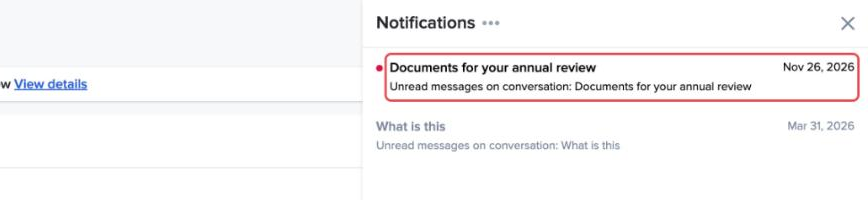
The bell at the top right opens the client's notifications. A red dot on the bell means there are unread ones.
-
In the "Notifications" panel, unread notifications have a red dot and sit above the ones the client has already read. Each shows its title, a line about what it is, for example "Unread messages on conversation: Documents for your annual review", and the date.
-
When something new arrives, such as a message the client hasn't read yet, a banner at the top of the page says so, with "View details" to open it. The client can close the banner with the cross on the right.

9. Household or personal view
-
Household view: the client sees the accounts, holdings and documents of every member of the household.
-
Personal view: the client sees only their own accounts, holdings and documents.
-
By default, the main client has the household view and the partner has the personal view. For clients on Timeline Platform you can change each person's view under "Client settings", then "Client portal". See Client settings: details, household, assigned adviser and portal visibility.
10. Trusts (Timeline Platform only)
-
A client who is a trustee of a trust on Timeline Platform sees a switcher at the top of the menu. It lists their own view ("Household" or "Personal") and each trust by name.
-
Choosing a trust shows that trust's "Dashboard" and "Transactions". Choosing their own view takes them back to their own pages.
Conclusion
Knowing what your client sees helps you explain the Client Portal in a sentence and answer their questions straight away. They follow their plan's progress and pick up your documents in one secure place, and clients on Timeline Platform also see their investments and transactions. For common questions, read Client Portal FAQs.