
Summary
-
Any client in the Client Portal: You can message any client who has signed up to the Client Portal, whether or not they invest through Timeline Platform.
-
Conversations, not email threads: Each conversation has a subject, the messages and any files you or your client attach, all kept against the client in Timeline.
-
Bring in the right people: Add other members of the household, and colleagues from your firm, to a conversation.
-
Notified both ways: You get a notification in Timeline and an email when your client writes to you. Your client gets a notification in the Client Portal and an email when you write to them.
-
Stay organised: Filter conversations by open or closed, search messages and files, and close a conversation once it's dealt with.
Description
Secure messaging gives you and your clients a private place to talk and share documents. Messages and attachments stay inside Timeline and the Client Portal rather than in email inboxes, so the whole conversation sits with the client's record.
1. Before you start
-
Your client needs to have accepted their Client Portal invitation and set up their login. See Invite any client to the Client Portal.
-
You can message members of the household who are 18 or over and have signed up to the Client Portal.
-
If nobody in the household has signed up yet, the "New conversation with client" button is greyed out.
2. Start a conversation with your client
-
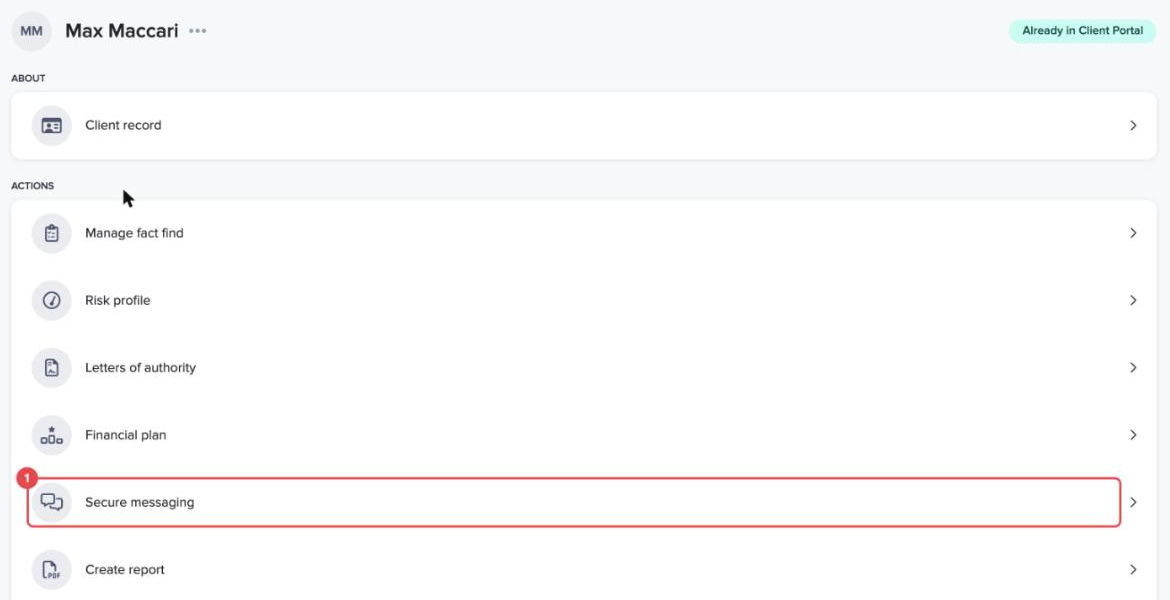
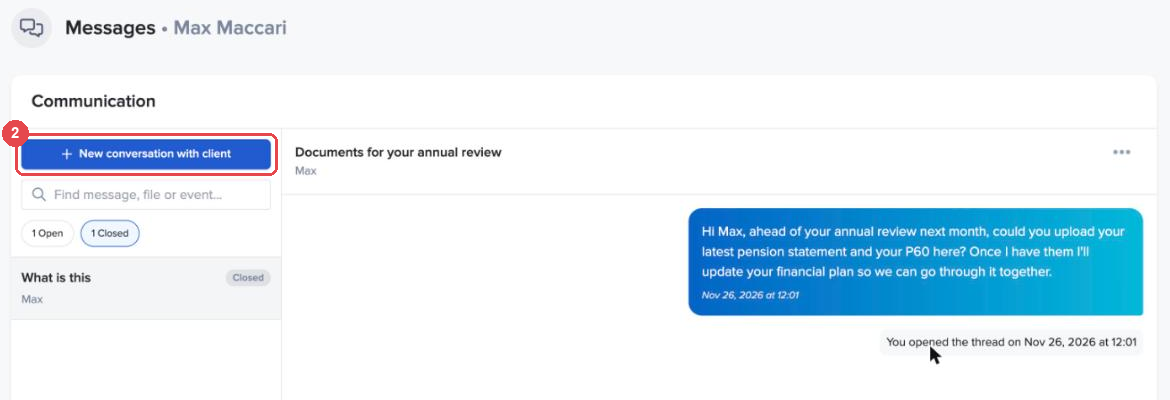
Open the client in Timeline. Under "Actions", click "Secure messaging". The "Messages" page opens, with the client's conversations listed on the left under "Communication".
-
Click "New conversation with client" at the top of the list. The "New conversation" window opens.
-
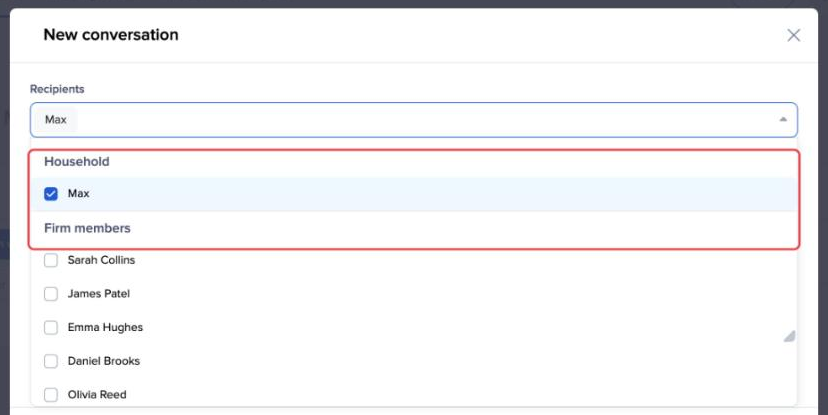
Under "Recipients", open the list and tick who should be in the conversation. "Household" lists the members of the household who have signed up to the Client Portal. "Firm members" lists the advisers and paraplanners in your firm, so you can bring in a colleague.
-
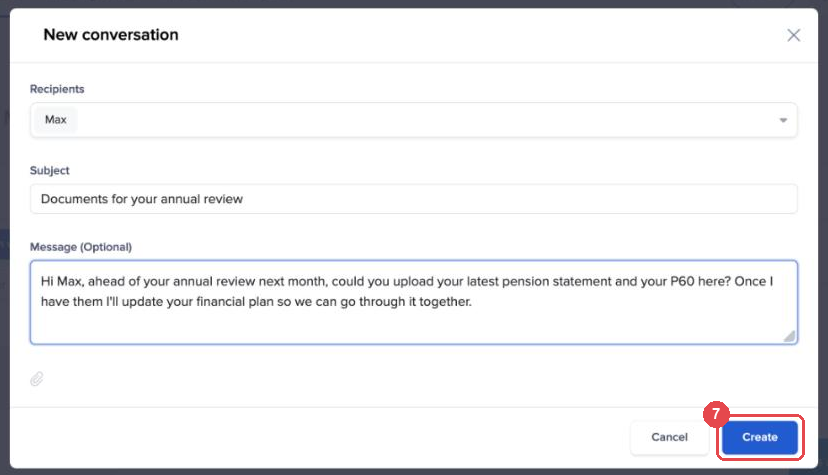
Type a "Subject", so you and your client can find the conversation later.
-
Write your first message under "Message (Optional)".
-
To share a document, click the paperclip under the message and choose the file.
-
Click "Create". Timeline confirms "New conversation created" and the conversation opens on the right.
3. Reply and share files
-
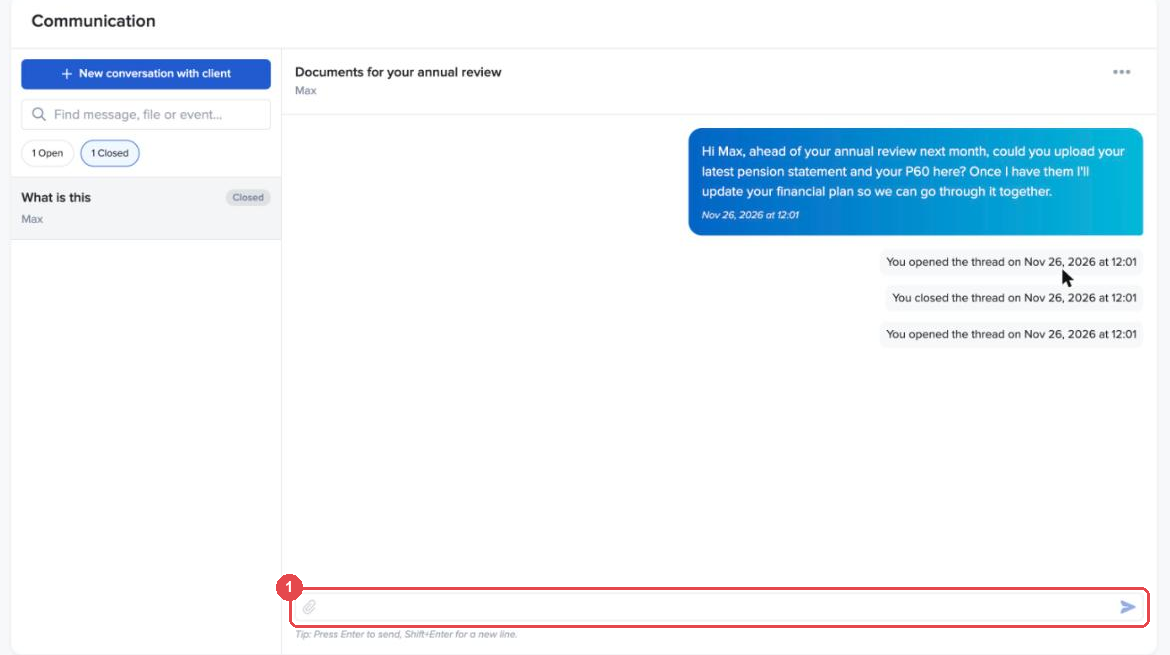
Click a conversation in the list to open it. Messages show as bubbles with their date and time, and lines such as "You opened the thread on" or "You closed the thread on" record each change of status. Type your reply in the box at the bottom. Press Enter to send, or Shift+Enter for a new line. Click the paperclip in the box to attach a file.
-
To see every file shared in a conversation, click "…" at the top right of the conversation and choose "View files". The "Files" window lists the attachments, or shows "No attachments".
4. Close a conversation
-
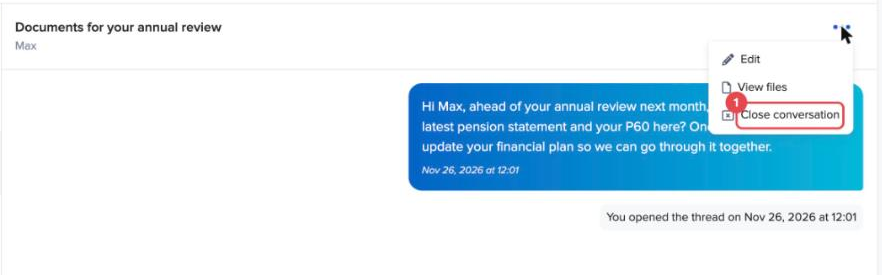
When a conversation is dealt with, click "…" at the top right of the conversation and choose "Close conversation". Timeline confirms "Conversation updated", and the conversation shows a "Closed" tag in the list.
5. Reopen a conversation
-
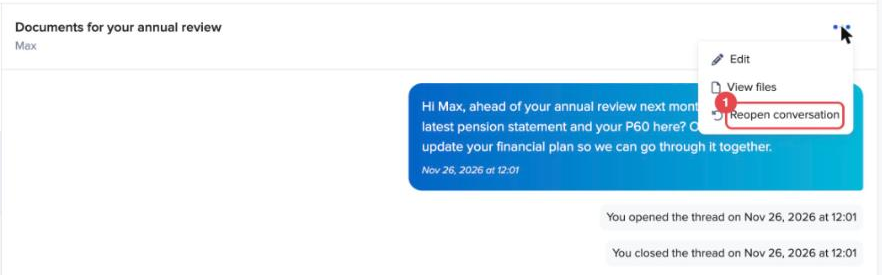
To bring a closed conversation back, click "…" and choose "Reopen conversation". The reply box comes back at the bottom.
-
If your client replies to a closed conversation, it reopens, and the conversation shows "The thread was opened by" and your client's name.
6. Change who's in a conversation
-
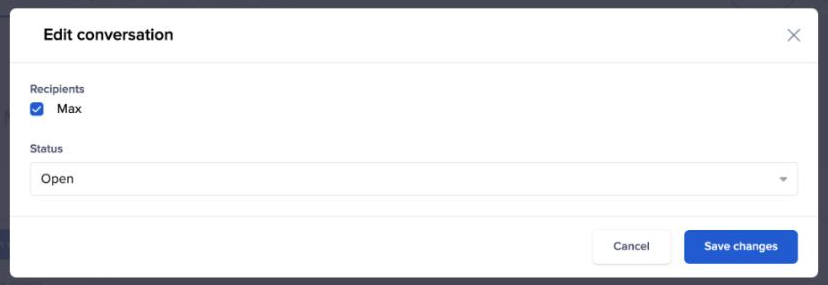
Click "…" at the top right of the conversation and choose "Edit". In "Edit conversation", tick or untick people under "Recipients", or change the "Status" to "Open" or "Closed", then click "Save changes".
7. Find a conversation
-
Open and Closed: The "Open" and "Closed" filters at the top of the list show how many conversations are in each state. Click one to show only those conversations.
-
Search: Type in "Find message, file or event..." to search the client's conversations.
8. How you know your client has written
-
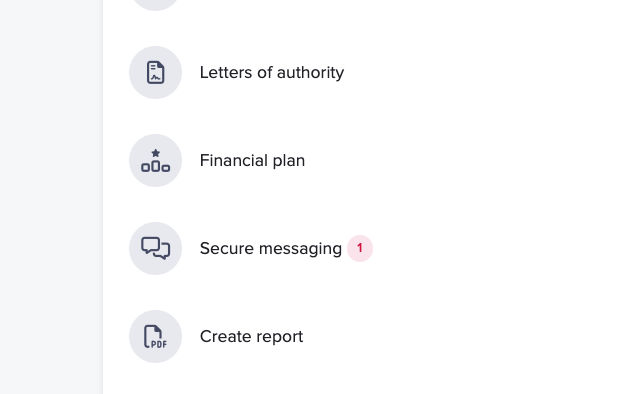
On the client's page: A red number next to "Secure messaging" under "Actions" shows how many of the client's messages you haven't read yet.
-
In Timeline: A notification appears under the bell at the top of Timeline, with the conversation's subject and "Unread messages on" followed by the client's name. Clicking it opens the conversation.
-
By email: You get an email with the subject "Timeline: New Secure Message For You from" and the client's name. Timeline waits about an hour after a new message and then sends one email covering everything that arrived in that time, with a "View message" button that opens the client's messages in Timeline. The email doesn't include the message itself.
-
Colleagues you added under "Firm members" are notified in the same way.
-
When your client starts a conversation from the Client Portal, it goes to their adviser in Timeline.
9. What your client sees
-
When you send a message, your client gets a notification in the Client Portal and an email with the subject "Timeline: New Secure Message For You" and a "View message" button. Like yours, the email doesn't include the message itself, and messages sent close together are covered by one email.
-
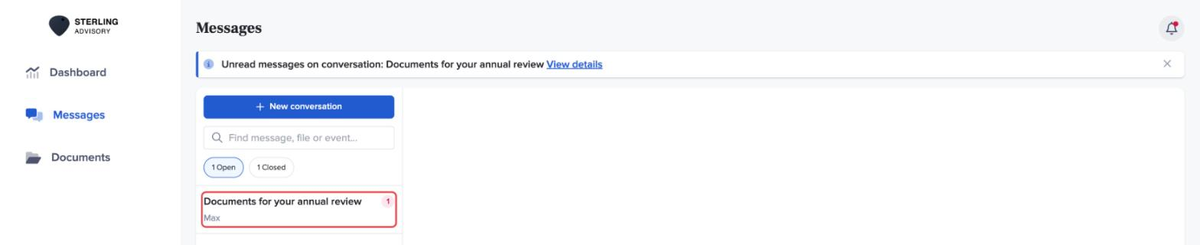
In the Client Portal, a red dot appears on the bell at the top right, and a banner at the top of the page reads "Unread messages on conversation:" followed by the conversation's subject. "View details" opens the conversation.

-
Your client clicks "Messages" in the Client Portal menu. A red number next to a conversation shows how many messages they haven't read. They can search their conversations, filter them by open or closed, and start a new conversation with you with "New conversation".
-
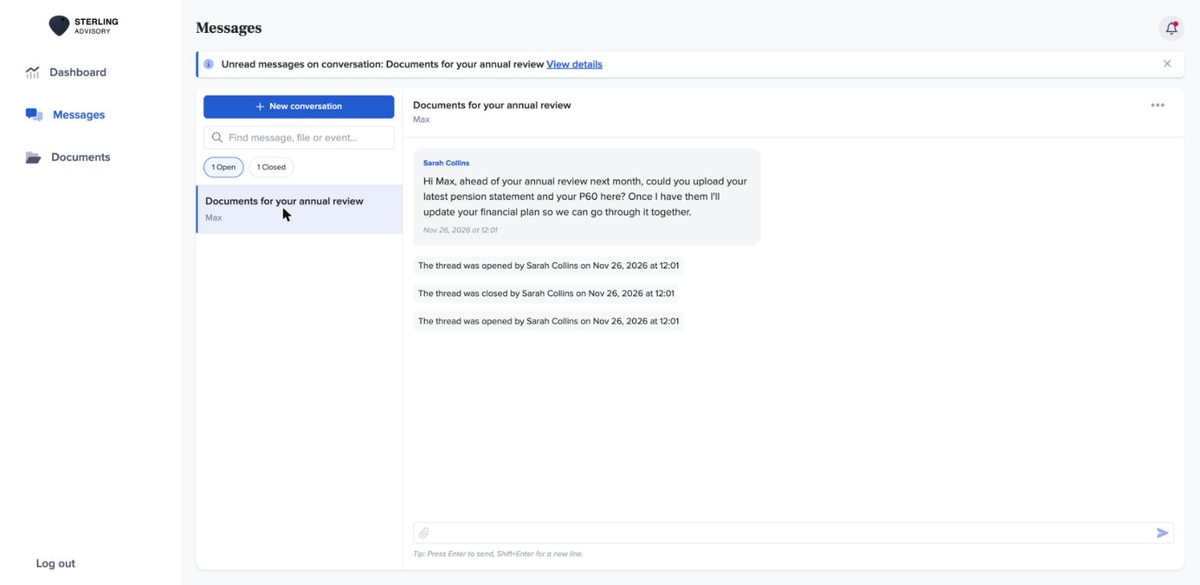
Your client opens the conversation to read your message, with your name above it, and replies in the box at the bottom. They can attach files with the paperclip.
-
For a tour of the rest of the Client Portal, read What your client sees in the Client Portal.
Conclusion
Secure messaging keeps every conversation with your clients, and every document they send you, in one place against their record. You can find what was agreed and which statement arrived when, without searching through inboxes. To share finished documents such as reports, read Share documents in the Client Portal, and for common questions, read Client Portal FAQs.